How to Connect Badger Maps to an AI Assistant for Route Creation
Good news! You can now connect your Badger Maps account to your preferred AI assistant to help you build routes more faster. Here’s what you need to do to get started.
In this article, we'll walk you through the setup process and show you how it works. We'll use Claude for this demonstration, but the same principles apply to other MCP-compatible AI assistants, like ChatGPT and Perplexity.
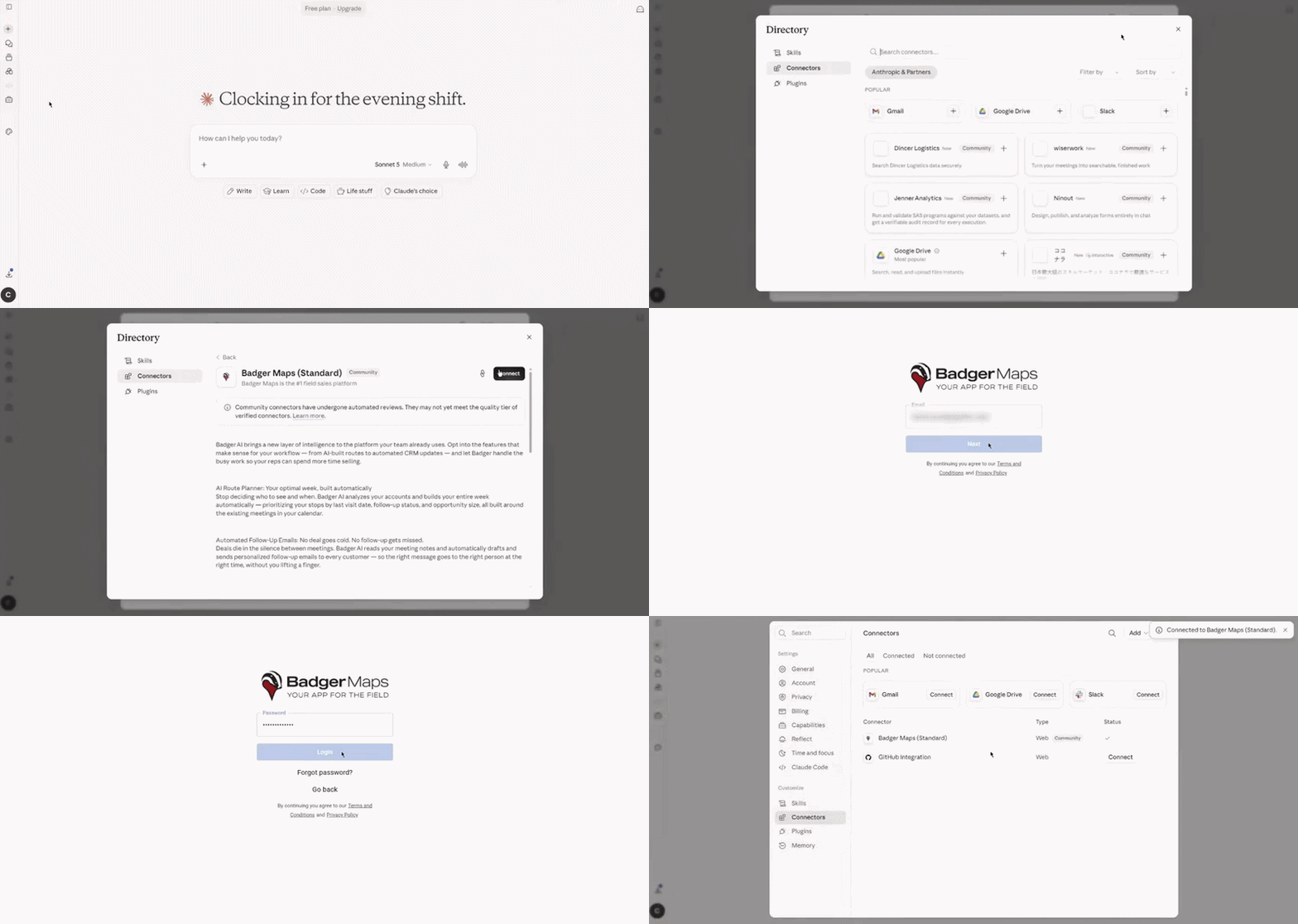
1. First, connect the Badger Maps MCP server to your preferred AI tool. Click here for the instructions on how to do it with Claude.
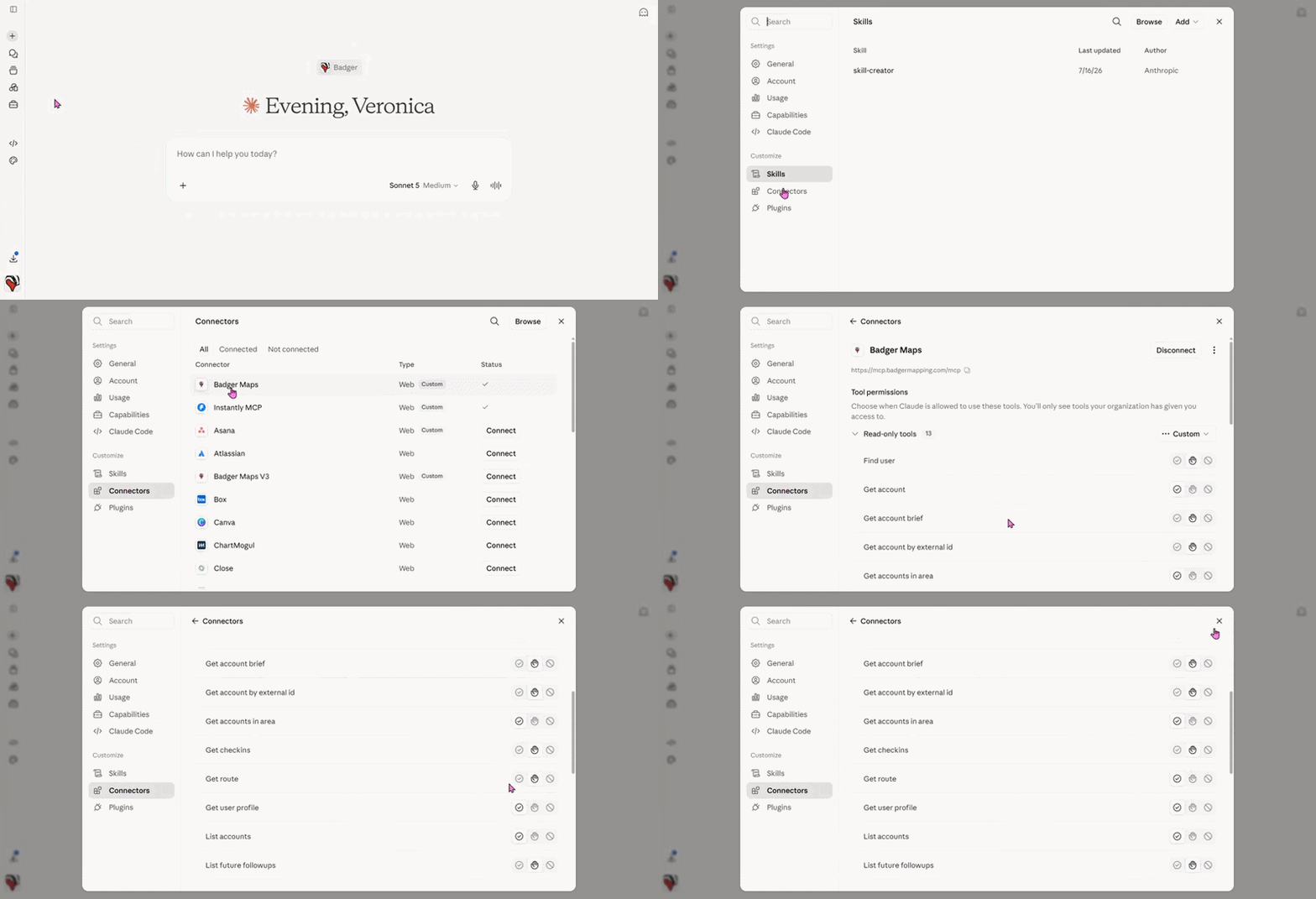
2. Once connected, choose which tools you want your AI to have access to. For Claude, simply go to Customize, then Connectors, then click Badger Maps, look for Tool permissions, then set your desired permission (Always allow, Needs approval, Blocked) by clicking on its corresponding icon.
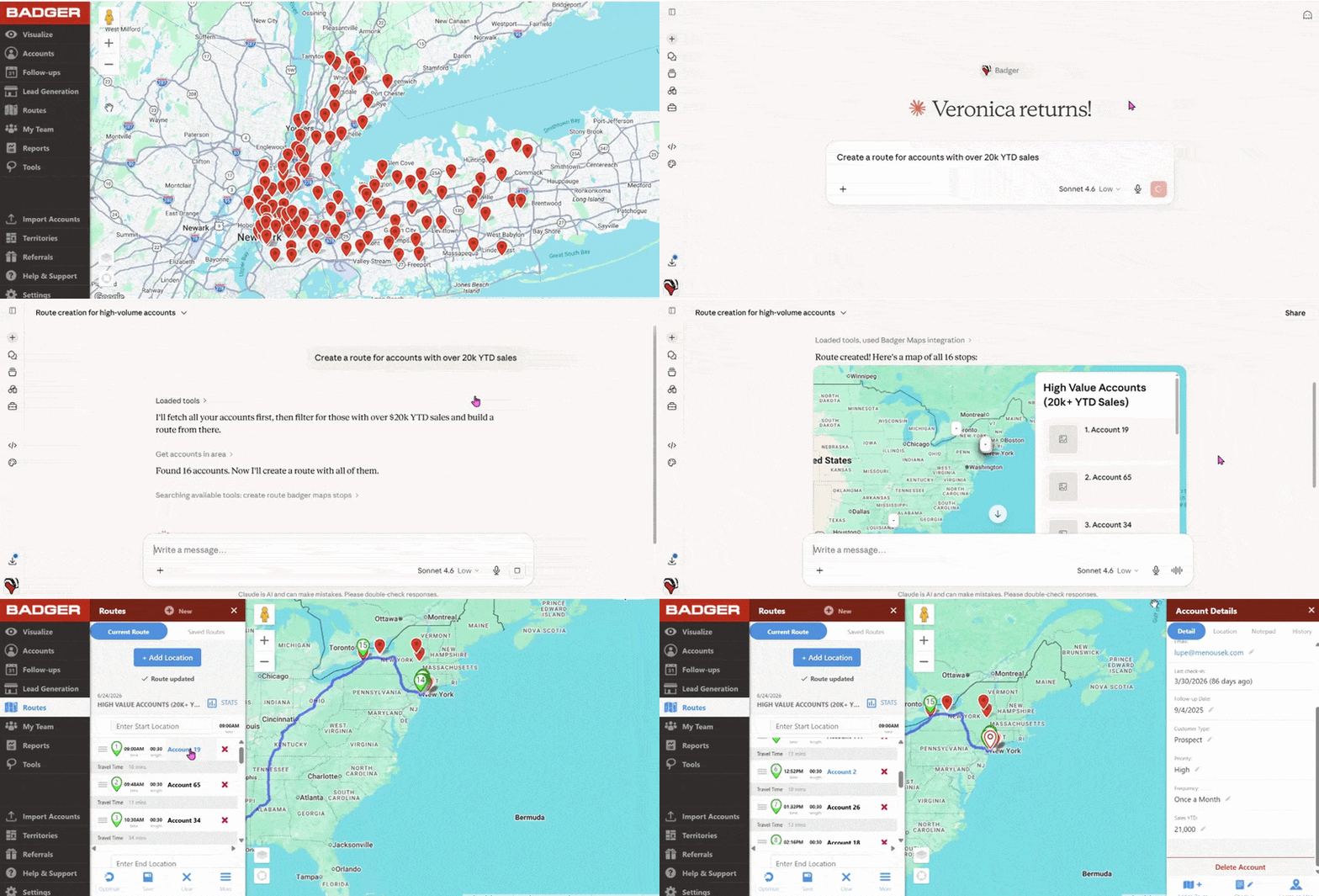
3. After that, you’re now ready to start a chat and ask your AI assistant to build the route for you in Badger. Here are some examples.
Sample Prompt: Create a route for accounts with over 20k YTD Sales
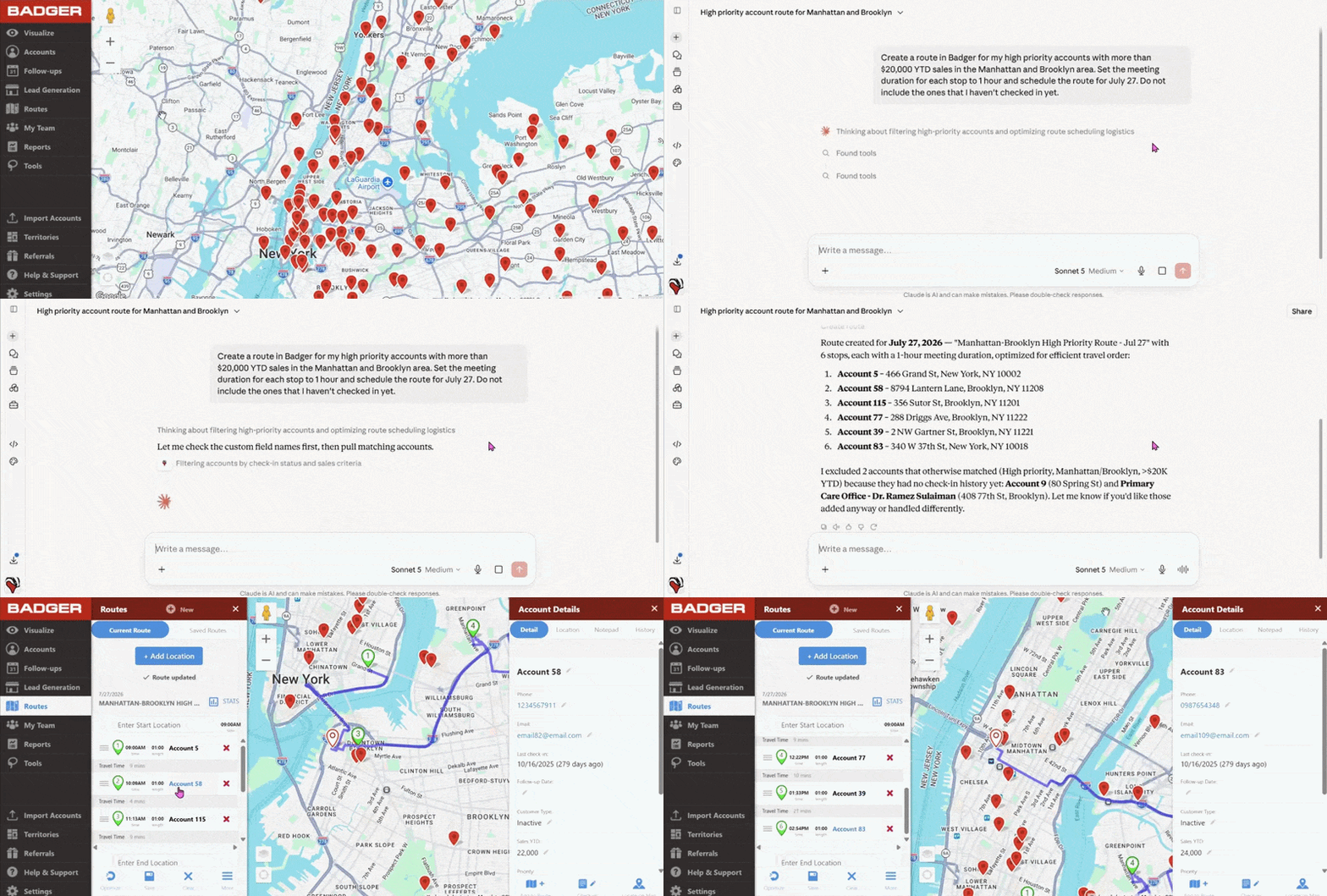
Sample Prompt: Create a route in Badger for my high priority accounts with more than $20,000 YTD sales in the Manhattan and Brooklyn area. Set the meeting duration for each stop to 1 hour and schedule the route for July 27. Do not include the ones that I haven't checked in yet.