How to Connect Badger Maps to an AI Assistant
This guide will help you link Badger Maps to the AI tool of your choice in just a few minutes, with no technical hoops to jump through. Once it is set up, you can prompt your AI tool to automate tasks within Badger. You can create routes based on criteria you type into your AI assistant's prompt box, set up automated email follow-ups after field activities, and more.
In this guide, we will cover:
- Getting Started - How to connect Badger Maps to your AI tool
Example tasks you can automate:
- Automate Follow-Up Emails - Connect with your Gmail to send emails to upcoming meetings
- Get Pre-Meeting Briefings - Create account overviews for field visits so you have context for every stop
- Automatically Build and Optimize Routes - Plan your days and weeks ahead, sharing meetings to your calendar and saving the routes in Badger
- Send Emails to Scheduled Stops - Automate personalized outreach to scheduled stops on your calendar
- Lead Scoring - Score accounts based on criteria of your choosing
- Technical FAQ - Permissions, data privacy, supported platforms, MCP server overview, and more
Getting Started
To get started, copy this into the MCP server URL field of your AI tool: https://mcp.badgermapping.com/mcp
Use your Badger username and password to authenticate.
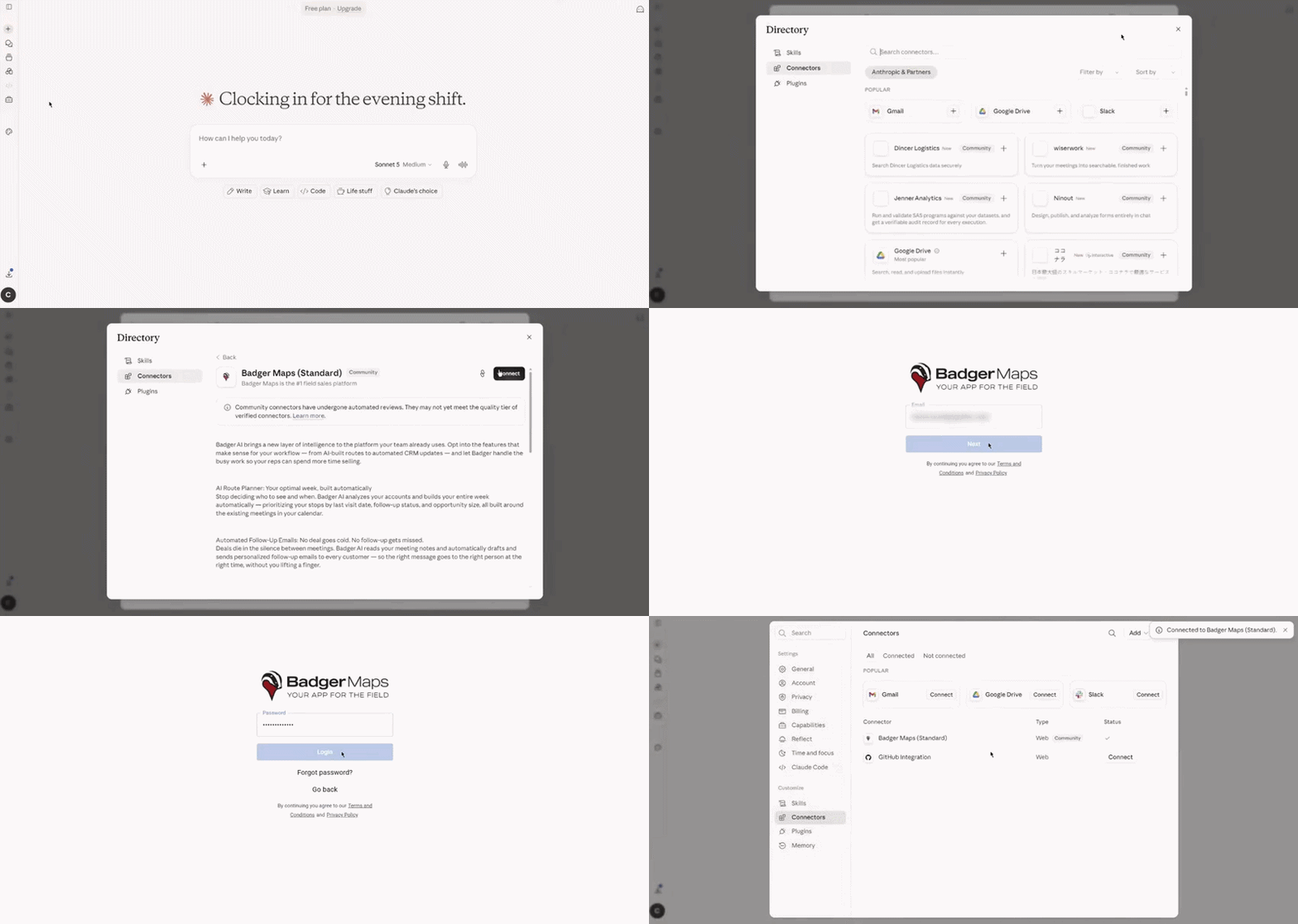
Here’s a step-by-step guide to getting started with Claude:
1. Log in to Claude, then click the Customize button.
2. Navigate to Connectors, click the Add button, and select Browse connectors.
3. Enter Badger Maps in the Search connectors field, and choose Badger Maps (Standard).
4. Click Connect. After that, you’ll be taken to Badger’s login page. Login with your registered email and password.
5. Start a new chat in Claude and try one of the prompts below!
Automate Follow Ups
Prompt
Pull my Follow Ups from Badger that are due next week or overdue and send emails to those accounts saying "Just checking in..." or something along those lines. Check the notes on the account in Badger to draft a more personalized message. Make it professional and concise. Skip it if they don't have an email address. Save all the emails as drafts in my Gmail. Don't include my phone number in the email signature.
Click here for the full guide.
Pre-Meeting Briefs
Prompt
For all of the stops in my Badger route for today, do a briefing / write up on the account and their business that the rep could read in 3 minutes to get an understanding of their business, industry trends, latest activity in Badger, etc. Use the internet (LinkedIn, other company websites) for general information and also Badger to get the latest updates from check-ins, notes, or other activity there.
Click here for the full guide.
Automatically Build and Optimize Routes
Prompt
Build my routes for next week in Chicago. Check my calendar and fit stops around existing meetings. Prioritize accounts I haven't visited recently or with overdue follow-ups, and Sales YTD over $10k. Aim for 5 stops/day. After saving optimized routes in Badger, add each stop to my calendar with address and context.
Click here for the full guide.
Send Emails to Scheduled Stops
Prompt
Send all these scheduled accounts an email letting them know that I will be in the area next week and check if the scheduled time works for them to meet. Check the notes on the account to draft a more personalized message. Make it professional and concise. Skip it if they don't have an email address. Save all the emails as drafts in my Gmail. Don't include my phone number in the email signature.
Click here for the full guide.
Lead Scoring / Account Prioritization
Prompt
For each account or lead in Badger or that I just added to a route, score/prioritize them based on the values of these fields: the higher the value of Field A the higher the score, if Field B is Medium-High or High the higher the score. Save the scoring value to the field “Score” for each account in Badger.
Technical FAQ
What is an MCP server?
MCP stands for Model Context Protocol, and it is a standard that lets conversational AI tools take real actions inside software.
Which AI tools is Badger Maps compatible with?
Badger Maps is compatible with all MCP-compatible AI tools like ChatGPT, Claude, Perplexity, and more.
What can the MCP server do with AI?
It can do a lot! AI "thinks" about how to solve the problem itself, we just provide the puzzle pieces to do it. That is all our MCP server is: it provides AI with access to the authenticated user’s data in Badger, plus a defined set of tools that AI can use to solve whatever problems it needs to with that data; the AI ultimately decides how to use those based on the user’s prompts.
See examples for some of the use cases it can solve.
How do I manage permissions & data access?
The same permissions apply to the MCP server and Badger’s API, since the MCP server is just a wrapper around our API. The MCP server will have the same permissions or access as the setup user in Badger.
For example, if you have an admin that has access to everything already with a Badger user, then you can set up through that user to get the same admin access via MCP.
Data Privacy
Badger's MCP server acts solely as a wrapper around Badger's existing API. It does not independently store, process, or share user or customer data with any third parties.
By connecting to or integrating Badger's MCP server with any external system, LLM, or AI platform, the user assumes full responsibility for ensuring their use complies with applicable data privacy laws and regulations, as well as their own organization's data handling policies.
Users should carefully review the privacy policies, data retention practices, and terms of service of any third-party platform before connecting it to Badger's MCP server.
When connecting Badger's MCP server to AI platforms such as Claude (Anthropic) or ChatGPT (OpenAI), data returned from the MCP server may be processed by those platforms and, depending on the user's account settings, potentially used to improve or train their models. This is governed entirely by the third party's privacy policy – not Badger's.
Users who wish to prevent their data from being used for model training should review and configure the privacy settings of any connected AI platform accordingly. Many platforms offer an opt-out, typically found in account settings or preferences.
Badger makes no representations or guarantees regarding the data privacy practices of third-party platforms that may be used in conjunction with the MCP server.


