Stop managing a spreadsheet. Start running a territory.
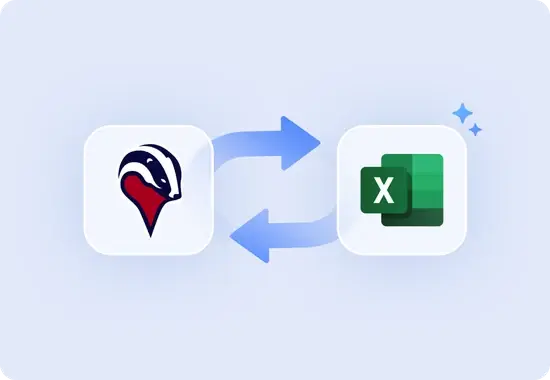
Import your accounts, and Badger turns them into a live, actionable map your team can filter, route from, and update in the field. Then, export whatever data you need back with the click of a button.
How it works
Upload your Excel or CSV file, map your columns to Badger's fields, and you're done. Your accounts appear on the map with all your customer data color-coded, filterable, and ready to act on. Next log the data you need, and export the updated data as a spreadsheet. It’s that simple.
Customer Data
What you can do once your data is in Badger
See your territory at a glance
Every account plotted on a map, color-coded by whatever matters to your team like deal stage, last visit date, or revenue.
Build routes from your account list
Optimize your stops to cut drive time, add nearby prospects to fill gaps, and go.
Find opportunities hiding in your data
Filter accounts by any field, and surface the customers who need a visit near your next stop.
Track activity as you go
Log visits, add notes, and update records from the field. No more double entry.
We’ll import your spreadsheet for you or you can do it yourself in 3 easy steps
Upload your file
Go to Accounts > Import Data and upload your .xls or .csv file. The only requirement is more than one entry.
Map your fields
Tell Badger which columns are the address, account name, and any other details you want to bring in like phone, email, notes, custom fields.
Import and go
Hit Map It! and your accounts appear on the map, filterable and ready to route.
Ready to see your data on a map?
Start a free trial or send us your spreadsheet and we'll show you what it looks like in Badger.