How to Connect Badger Maps with ChatGPT
In addition to Claude, Badger Maps can also connect with ChatGPT for AI assistance. The setup is easy, and here's how it works:
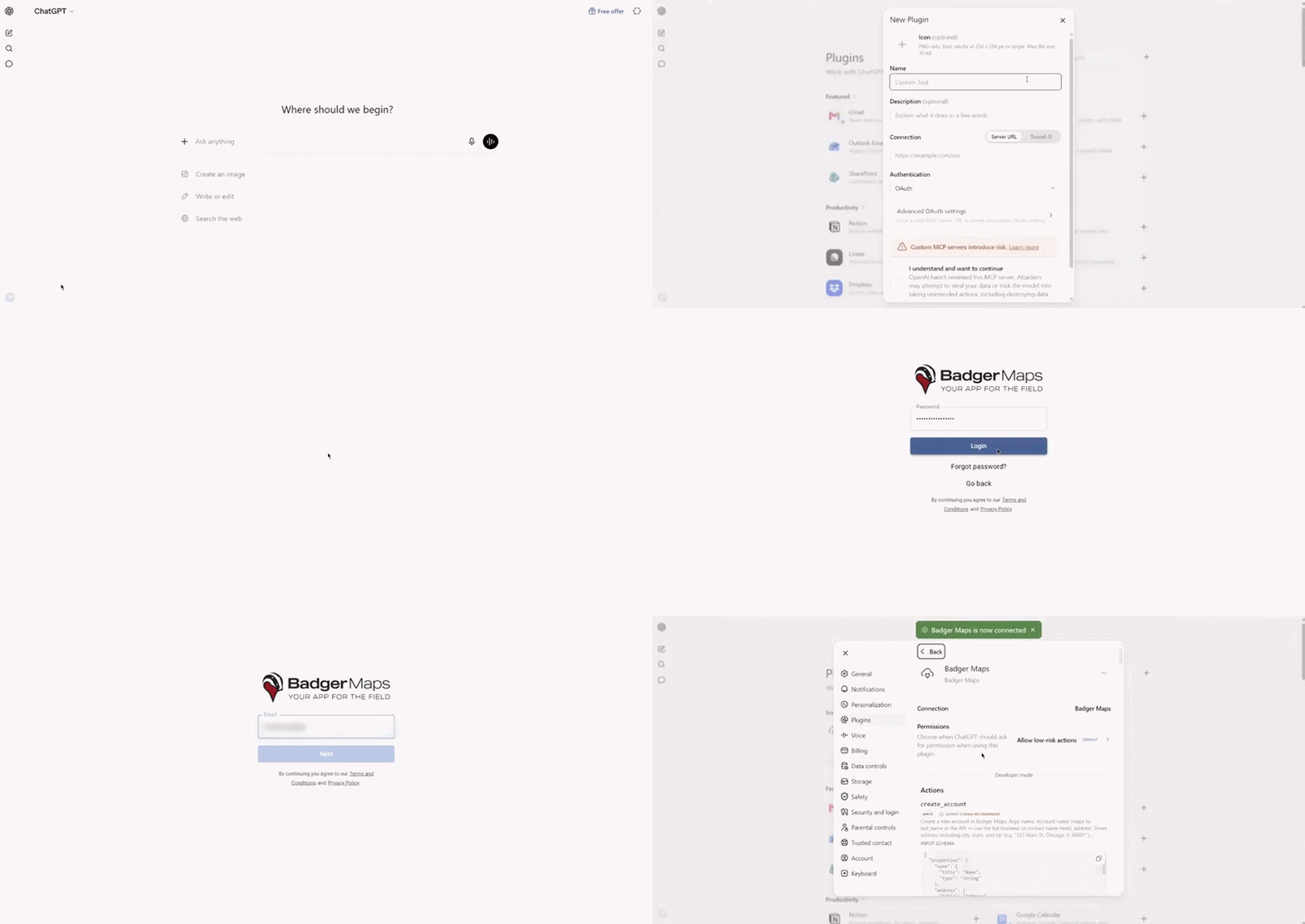
1. First, make sure Developer Mode is turned on. Click your Profile icon → Settings → Plugins, then select Developer Mode and toggle it on.
2. Go back to Plugins, click Browse plugins, and then click the “+” icon.
3. In the Name field, enter Badger Maps. In the Connection field, enter https://mcp.badgermapping.com/mcp Check the I understand and want to continue box, then click Create.
4. Click Sign in with Badger Maps and log in using your Badger Maps account credentials.
5. Once the plugin is installed, you’re almost ready to go! To connect Badger Maps to ChatGPT, click the three-dot icon next to Badger Maps, select Reconnect, and enter your Badger Maps login details again.
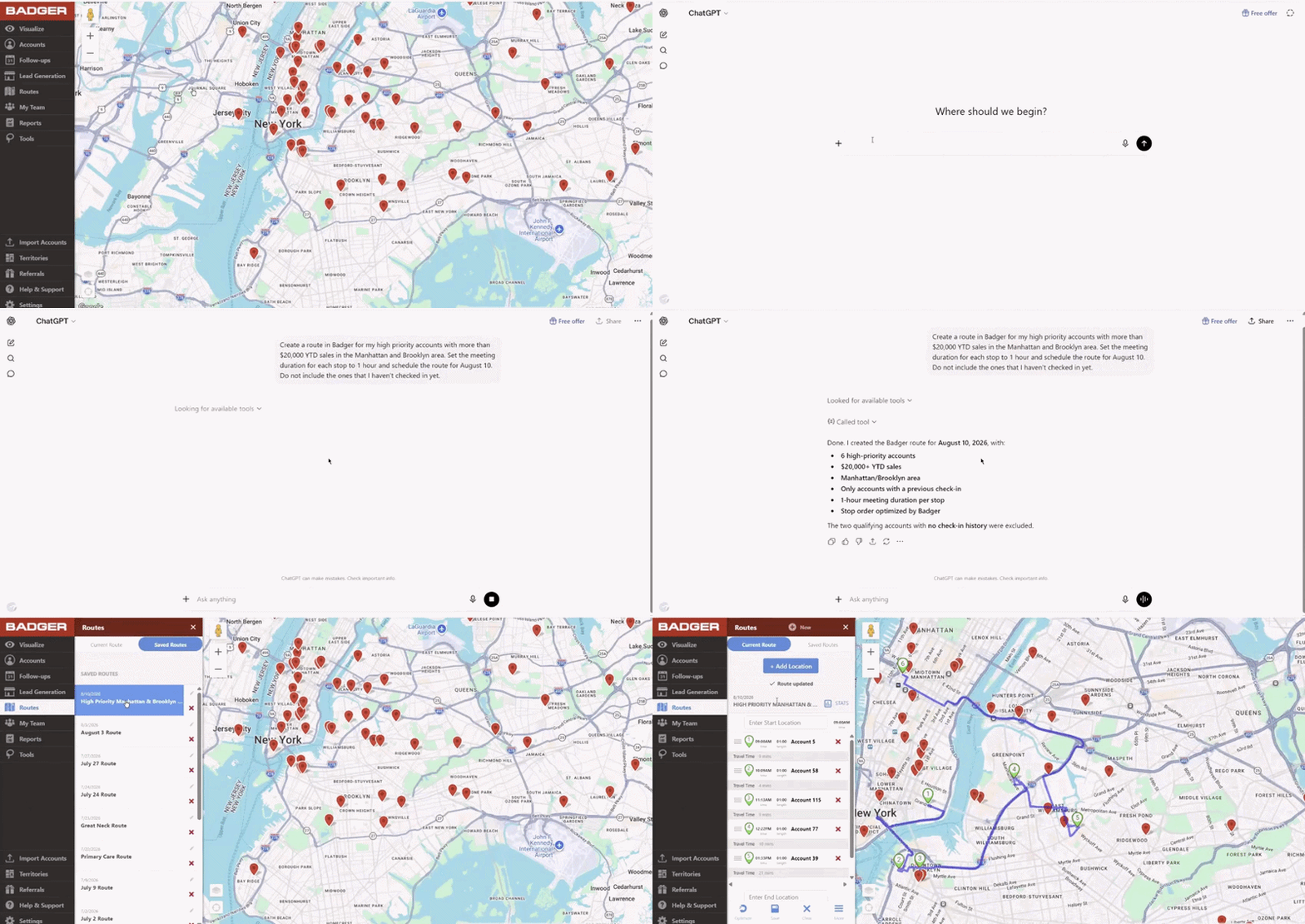
That’s it! Your Badger Maps account should now be connected to ChatGPT and ready to use. Here’s an example:
Sample Prompt:
Create a route in Badger for my high priority accounts with more than $20,000 YTD sales in the Manhattan and Brooklyn area. Set the meeting duration for each stop to 1 hour and schedule the route for August 10. Do not include the ones that I haven't checked in yet.