How to Connect Badger Maps to an AI Assistant for Pre-Meeting Briefs
Wouldn’t it be nice to quickly review all the accounts you’re scheduled to visit in one place? You can do exactly that by connecting your Badger Maps account to an AI assistant.
In this article, we’ll show you how to set it up with Claude. Note that the same principles also work with other MCP-compatible AI assistants, like ChatGPT and Perplexity. Read on to see how it works.
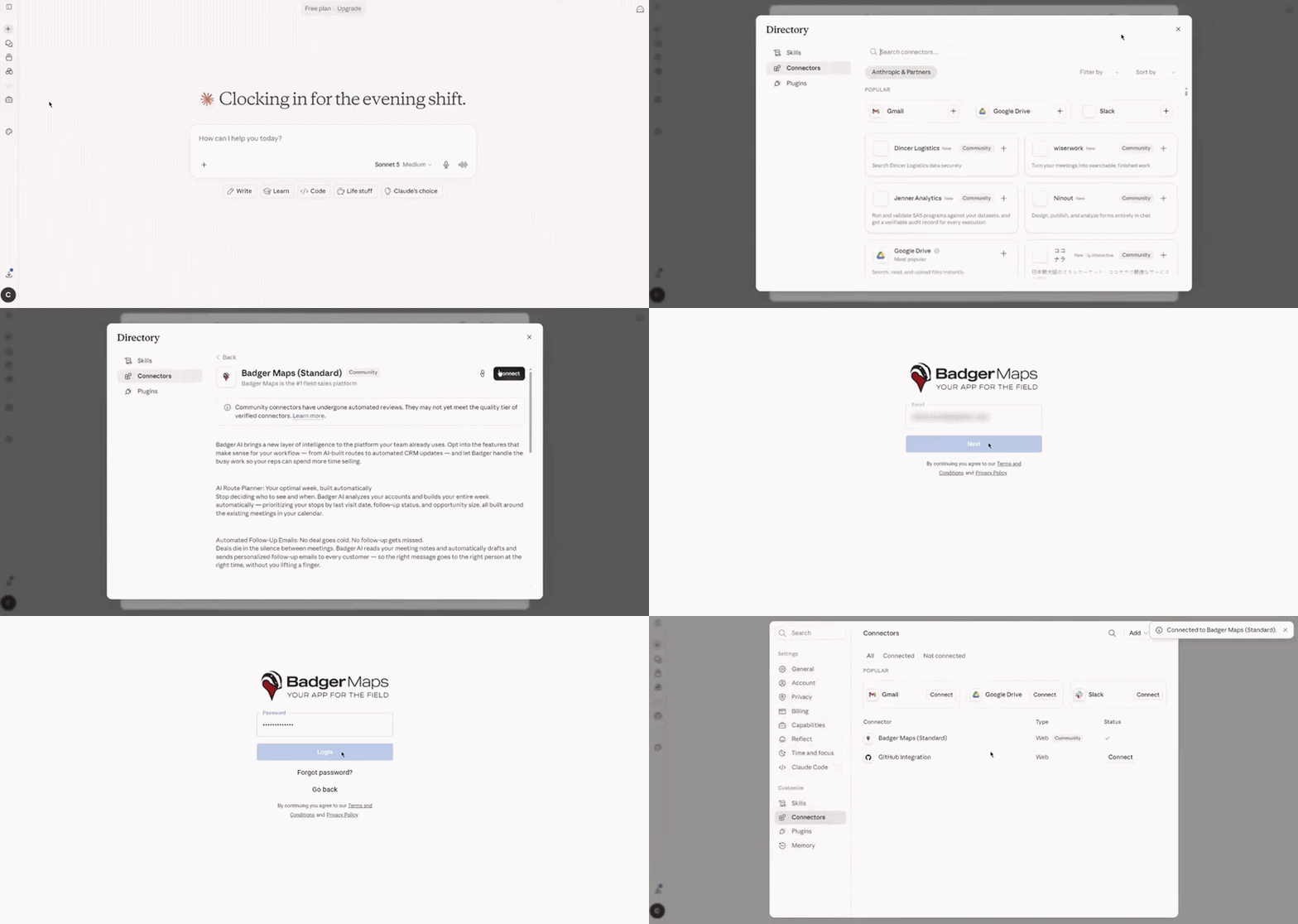
1. The first thing you have to do is to connect Badger Maps’ MCP server to Claude. Click here for the instructions.
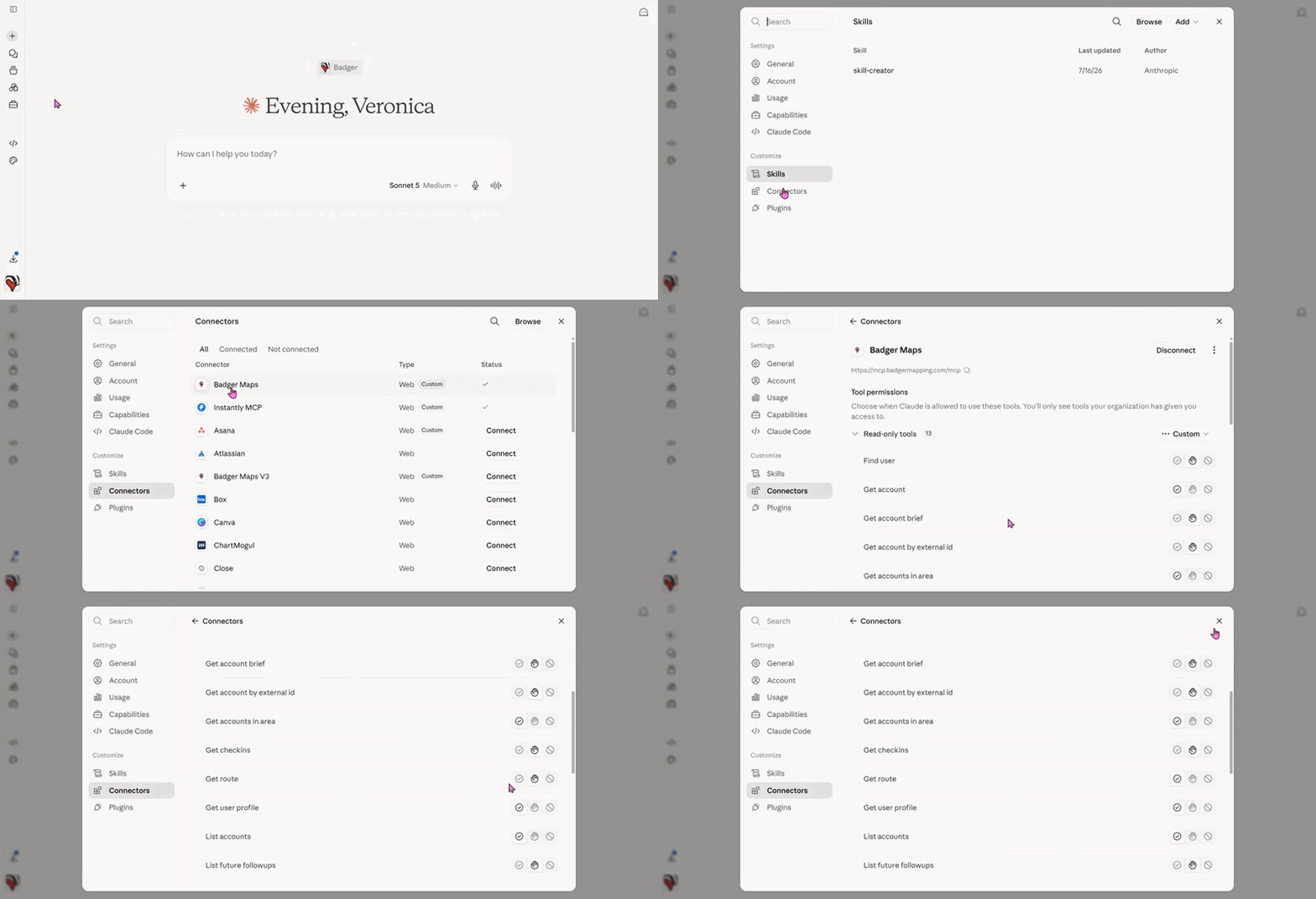
2. Once you're connected, select which Badger Maps tools your AI can use. In Claude, go to Customize > Connectors > Badger Maps > Tool permissions, then choose the permission level for each tool: Always allow, Needs approval, or Blocked.
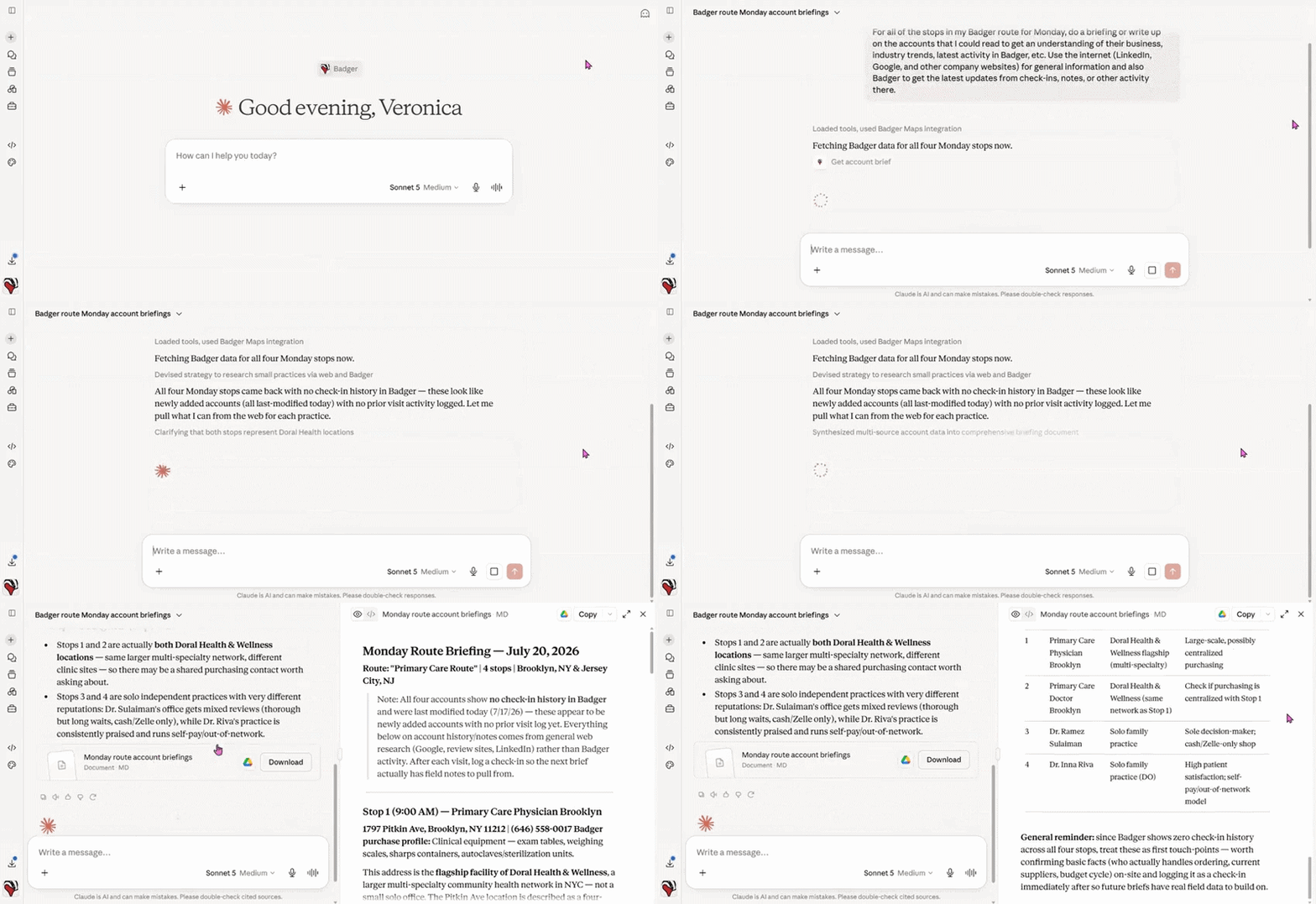
3. You're all set! Start a chat and ask your AI assistant to create a pre-meeting briefing for you.
Sample Prompt: For all of the stops in my Badger route for Monday, do a briefing or write up on the accounts that I could read to get an understanding of their business, industry trends, latest activity in Badger, etc. Use the internet (LinkedIn, Google, and other company websites) for general information and also Badger to get the latest updates from check-ins, notes, or other activity there.