How to Connect Badger Maps to an AI Assistant for Email Scheduling
Another cool thing you can do after connecting your Badger Maps account to an AI assistant is send personalized emails to your clients without writing each one from scratch. Read on to see how it works.
For this article, we'll use Claude and Gmail, but the same principles also apply to other MCP-compatible AI assistants, like ChatGPT and Perplexity, as well as other email providers like Outlook.
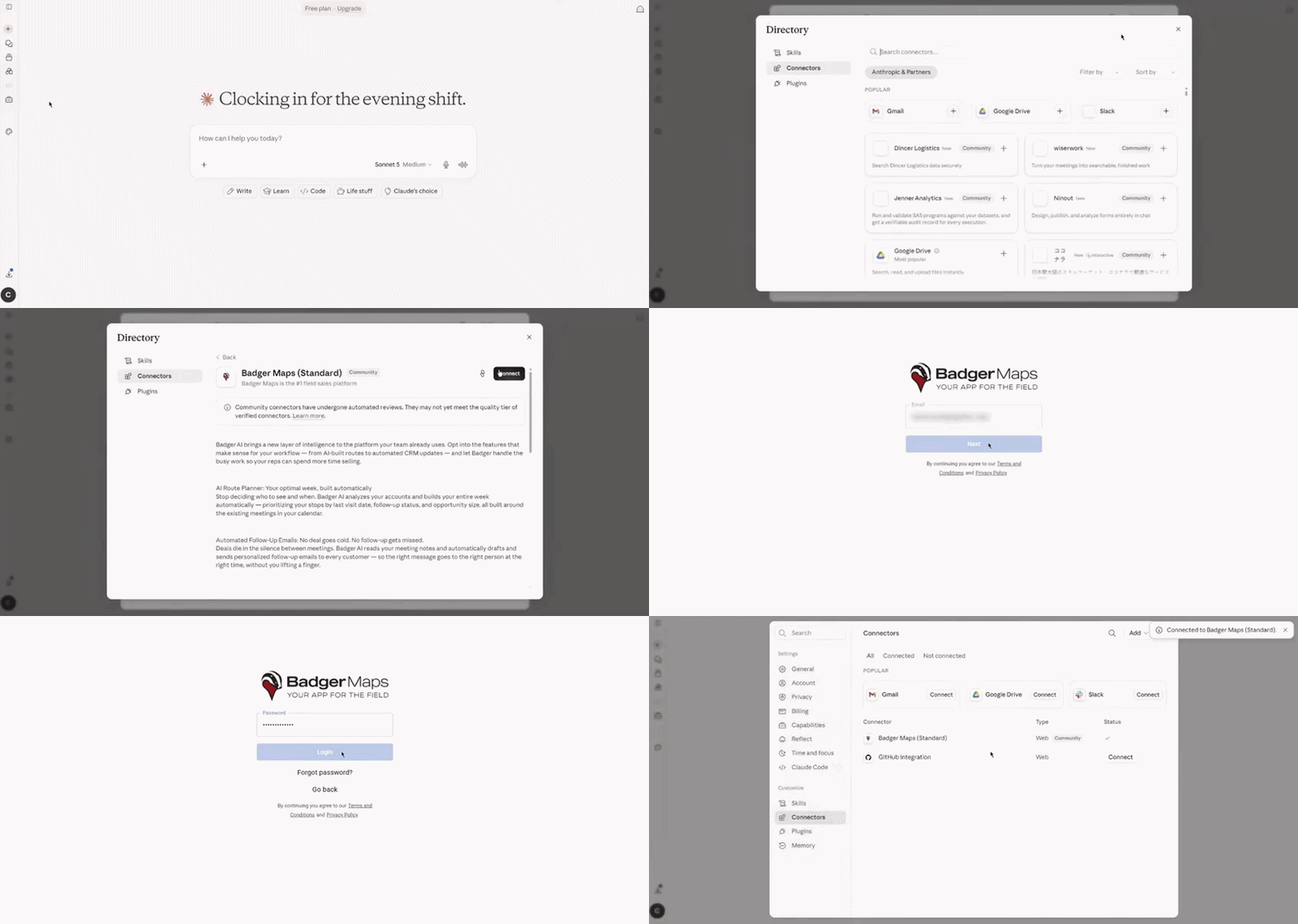
1. First, connect the Badger Maps MCP server to your AI tool. Click here for the instructions on how to do it with Claude.
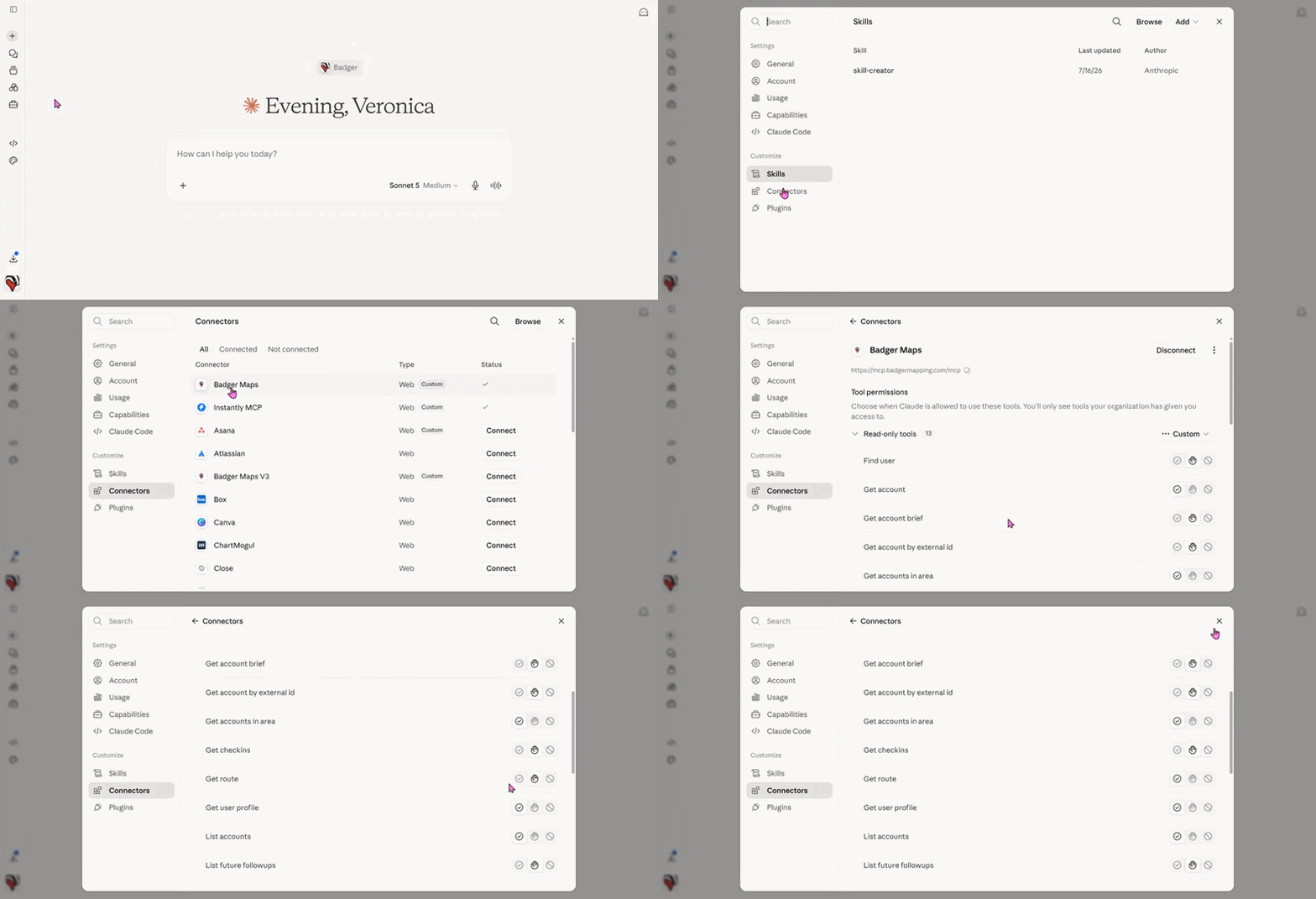
2. Once connected, choose which tools you want your AI to access. In Claude, go to Customize > Connectors > Badger Maps > Tool permissions, then select your preferred permission level: Always allow, Needs approval, or Blocked.
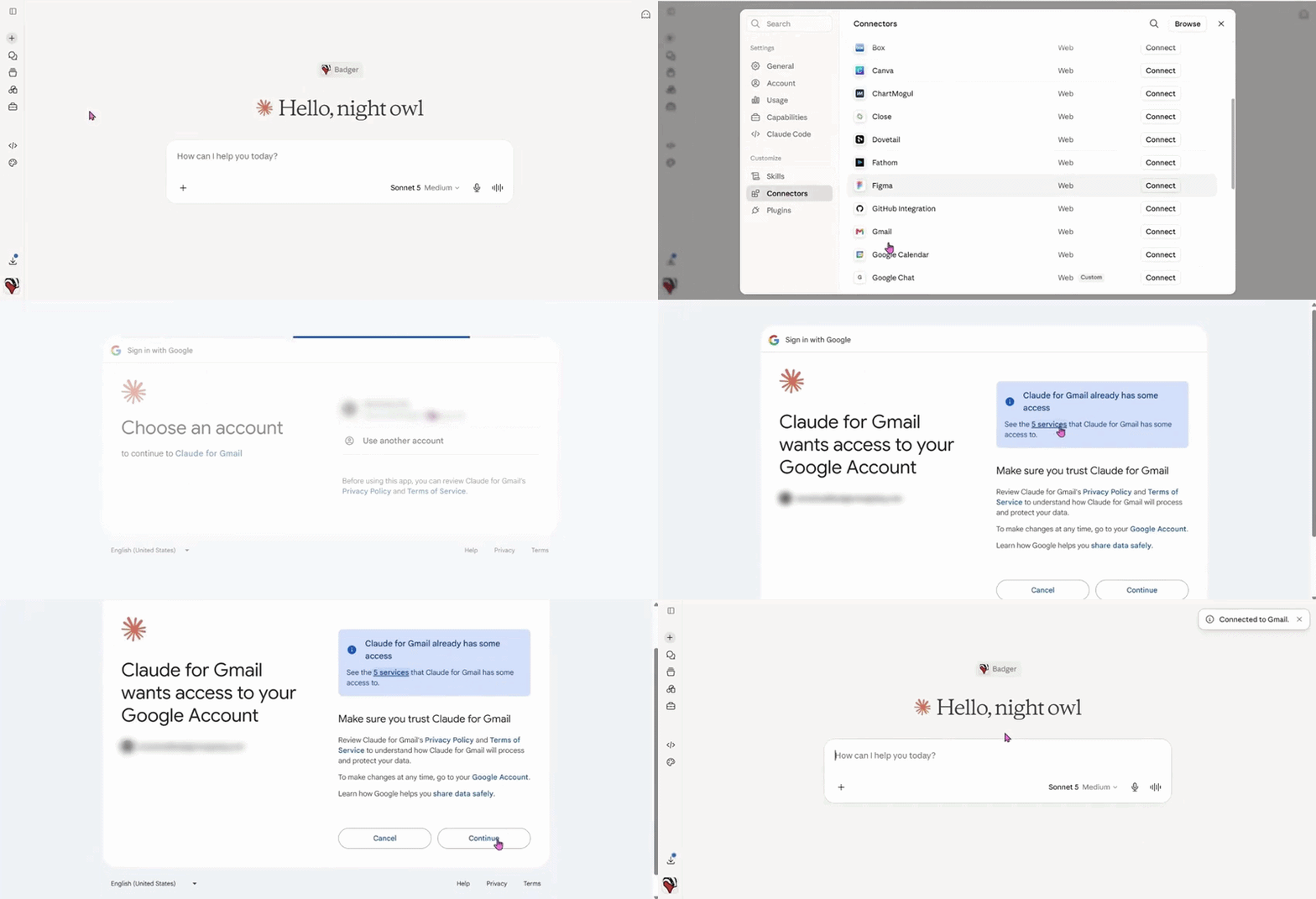
3. Next thing you need to do is to connect your Gmail account to Claude. Go to Customize > Connectors > Gmail, sign in to your Gmail account, and grant the necessary permissions.
4. You can now start a chat and ask your AI assistant to write emails to your customers. Here’s an example.
Sample Prompt: Pull up my Great Neck route and draft an email to the accounts on that route letting them know I'll be visiting on July 23. Check the last check-in date for each account and personalize each message accordingly in my Gmail account. Keep the emails professional and concise.