How to Connect Badger Maps to an AI Assistant for Follow-Up Emails
Follow-Ups is one of Badger Maps' core features, and it becomes even more useful when you connect Badger to your AI assistant. Instead of checking the Follow-Ups field in the web or iOS app and writing each email yourself, your AI can automatically draft personalized follow-up emails for your clients.
In this article, we'll show you how it works using Claude and Gmail. The same approach also works with other MCP-compatible AI assistants, such as ChatGPT and Perplexity, and with other email providers like Outlook.
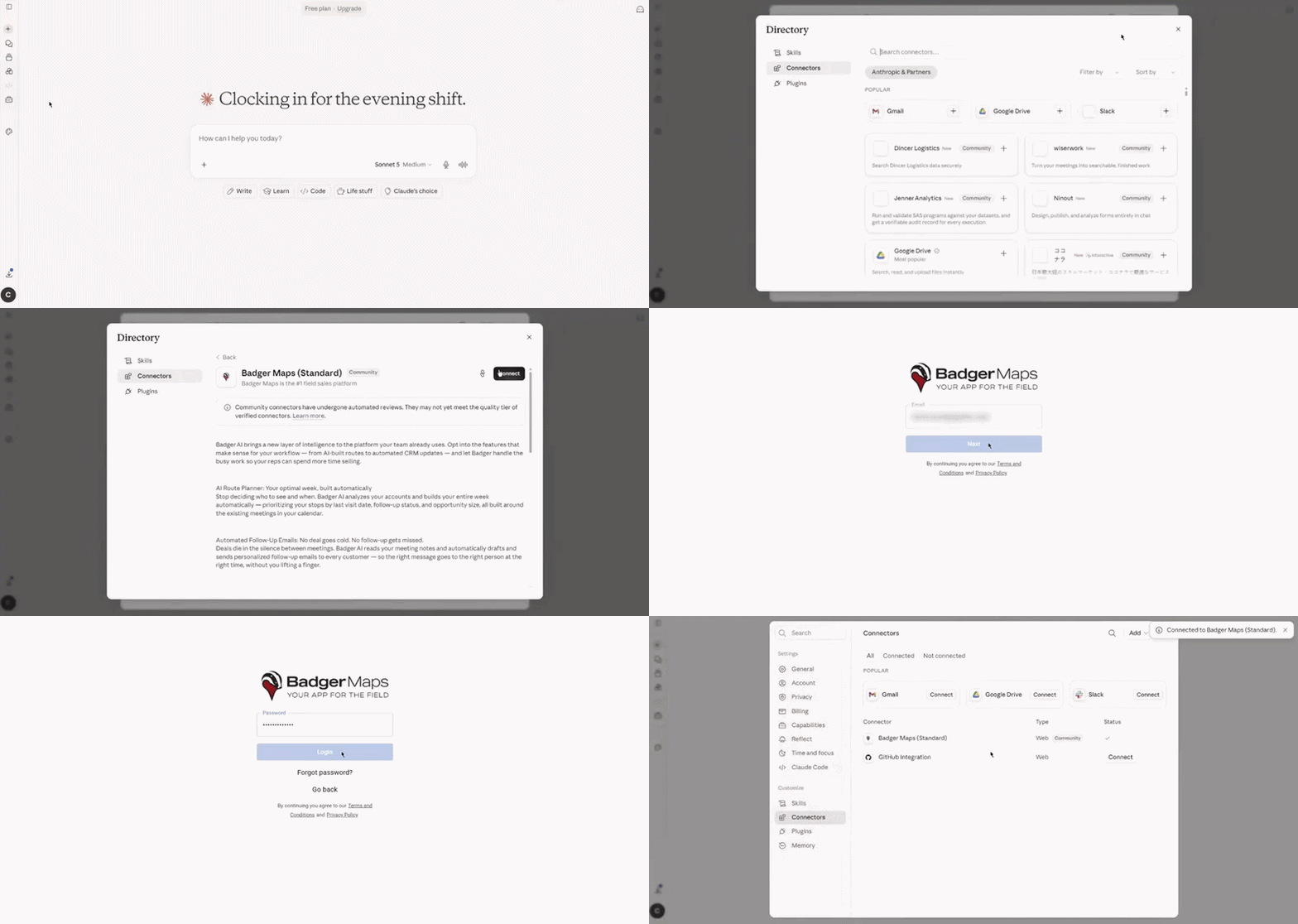
1. Connect the Badger Maps MCP server to your AI tool. You can click here for the steps on how to do it with Claude.
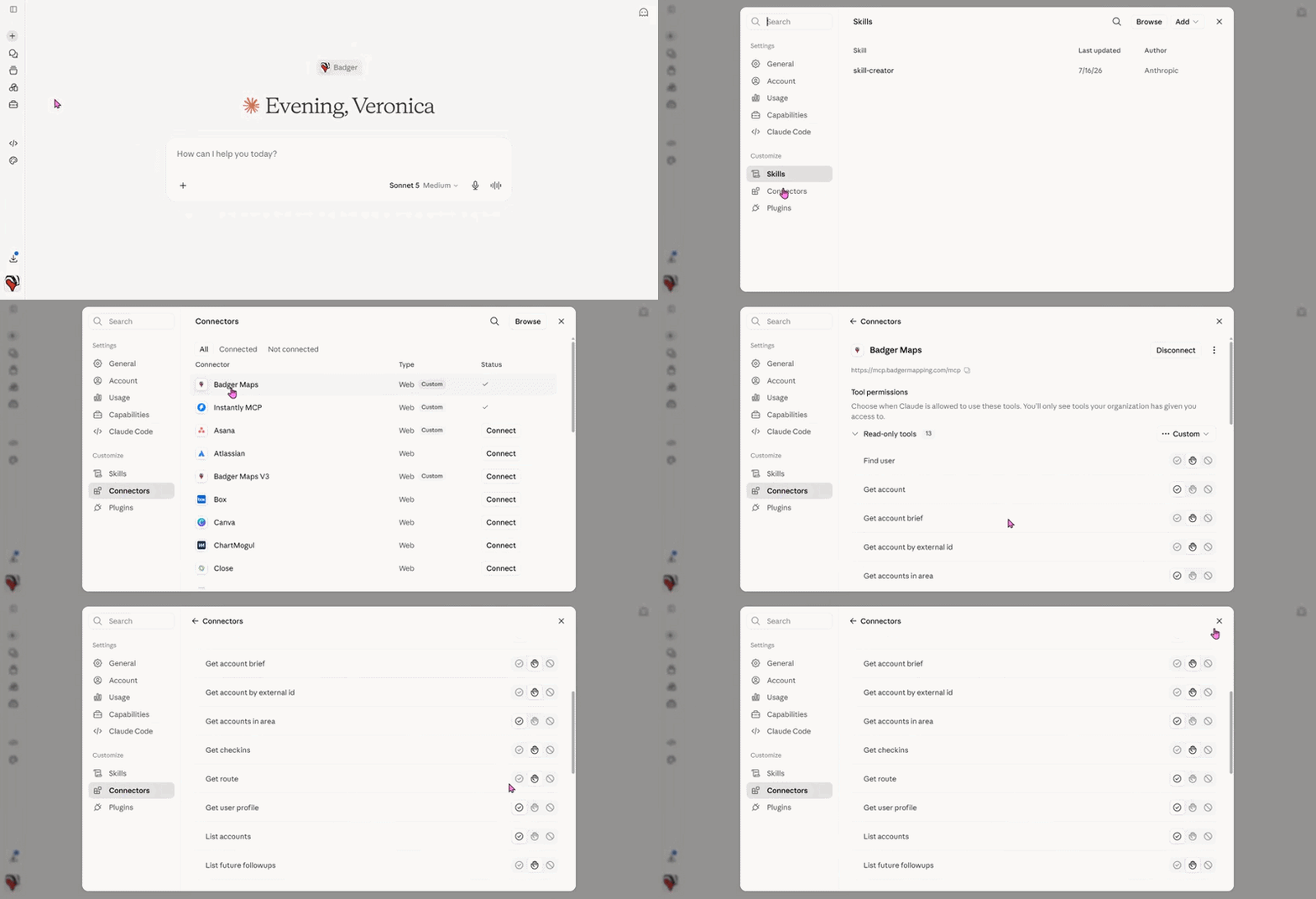
2. After connecting, select which tools you want your AI to have access to. For Claude, you can start by going to Customize, then clicking Connectors, then Badger Maps, then look for Tool permissions, and set your desired permission (Always allow, Needs approval, Blocked) by clicking on its corresponding icon.
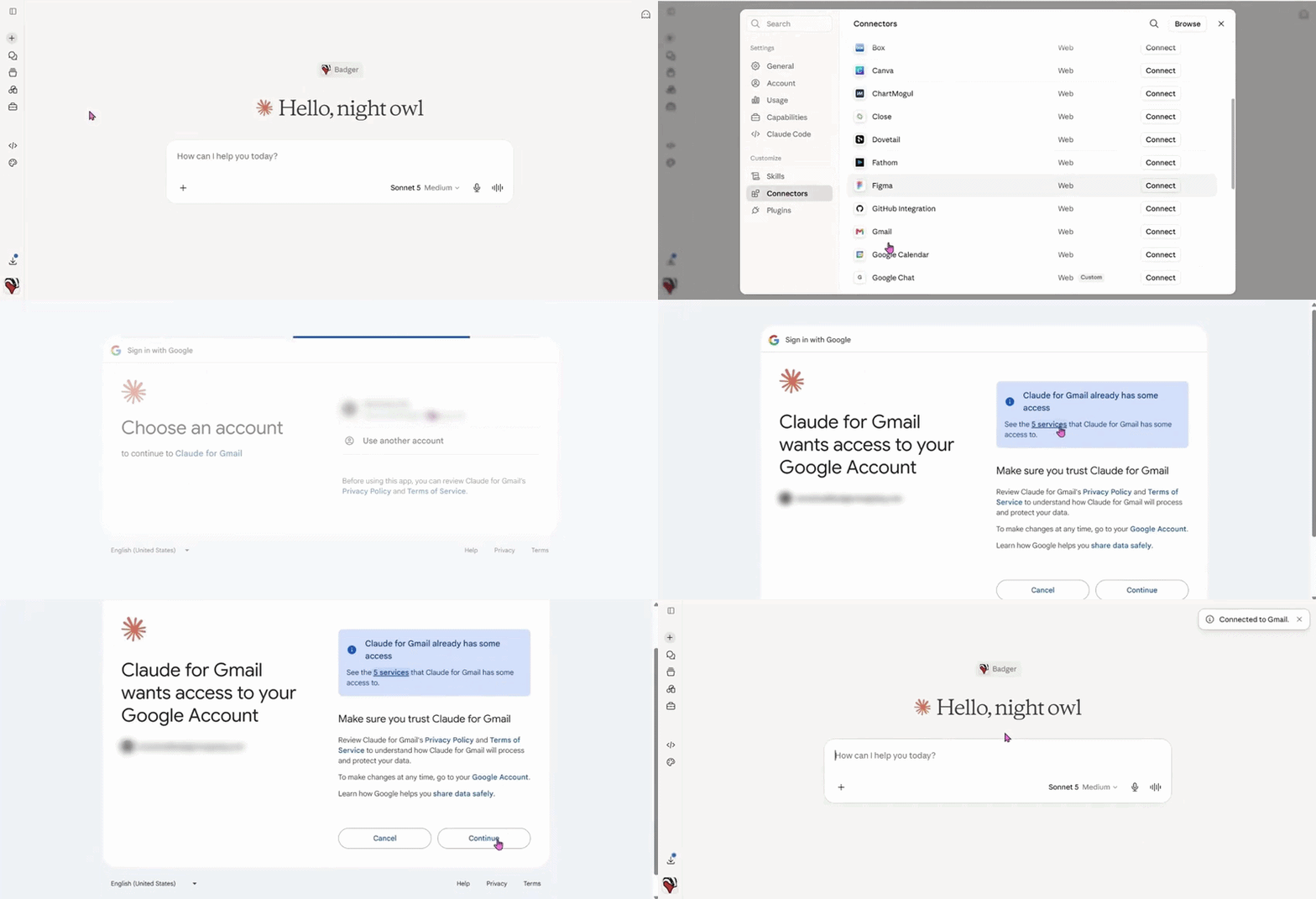
3. The next step is to connect your Gmail account to Claude. To do this, go to Customize > Connectors > Gmail, sign in to your Gmail account, and grant the necessary permissions.
4. And you’re good to go. You can start a chat and ask your AI assistant to write emails to your customers. Here’s an example.
Sample Prompt: Pull my Follow Ups from Badger that are due today and next week. Send emails to those accounts saying "I wanted to touch base" or something along those lines. Check the last check-in date of each account as well as their notes to write a personalized message. Make it professional and concise. Save all the emails as drafts in my Gmail.