How to Connect Badger Maps to HubSpot Breeze
HubSpot Breeze is a suite of AI tools built into the HubSpot CRM platform, and you can now connect it to your Badger Maps account! Read below to learn how.
First, make sure to have the following ready.
- HubSpot account with the following:
- Permissions: Install apps from the HubSpot Marketplace
- Features: Agent Hub
- Badger Maps account
- Trial or paid
Once you have everything, follow these steps to get started.
1. Open up HubSpot’s marketplace, search for Badger Maps Connector, and click the Install button.
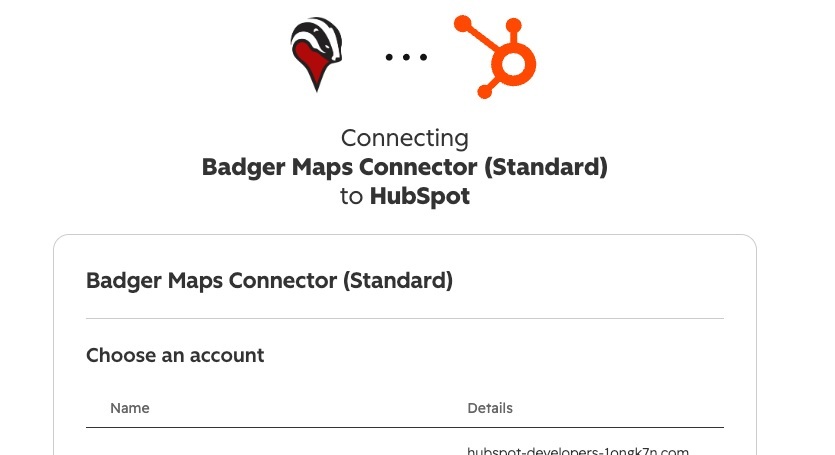
2. Select your HubSpot account to connect to, then click Choose Account.
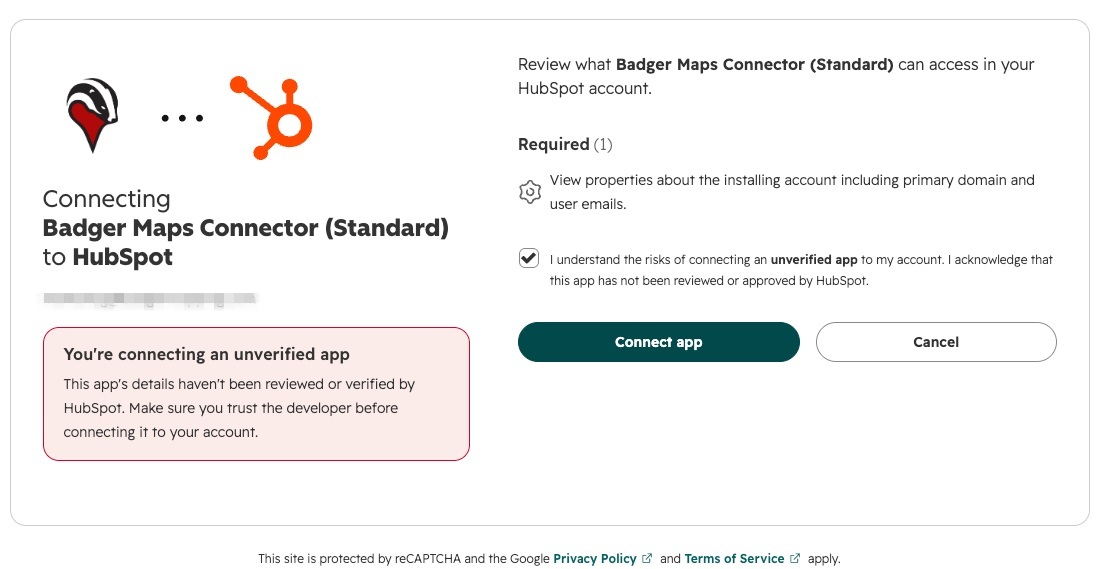
3. Check the box to grant the required minimum permissions, then click Connect app.
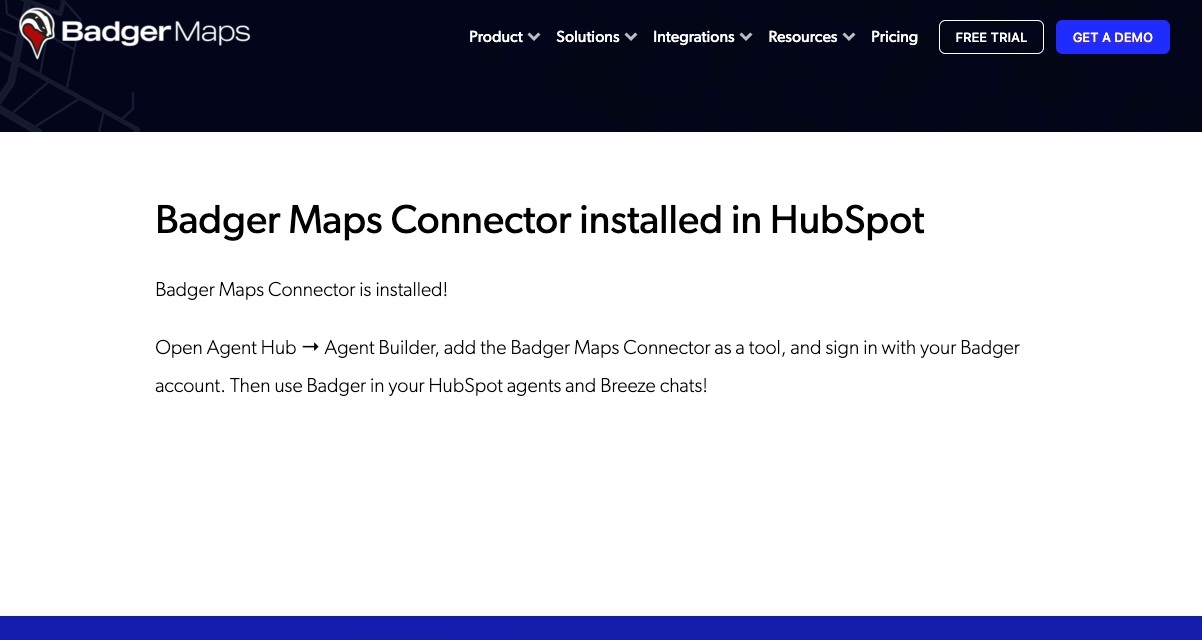
After this step, you will now have the Badger Maps Connector app installed in your HubSpot account. You will see this confirmation with an overview of next steps to use the Badger Maps Connector app.
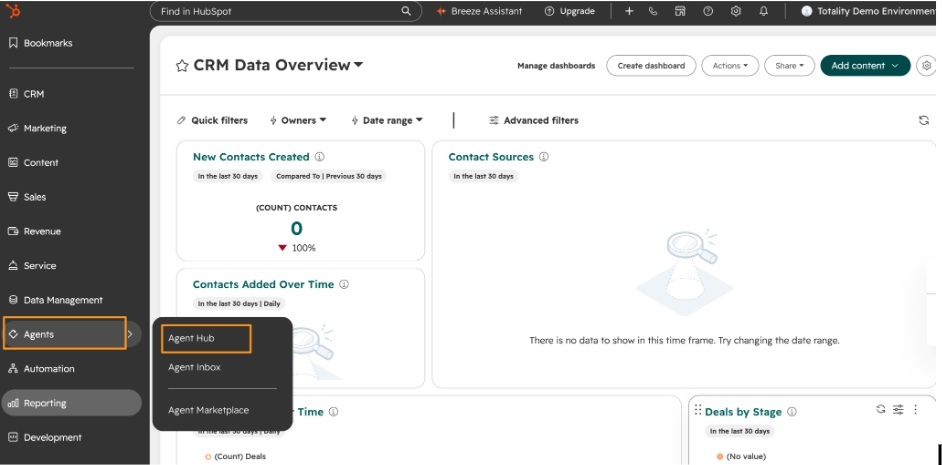
4. Back in HubSpot, from the main menu click on Agents, then Agent Hub.
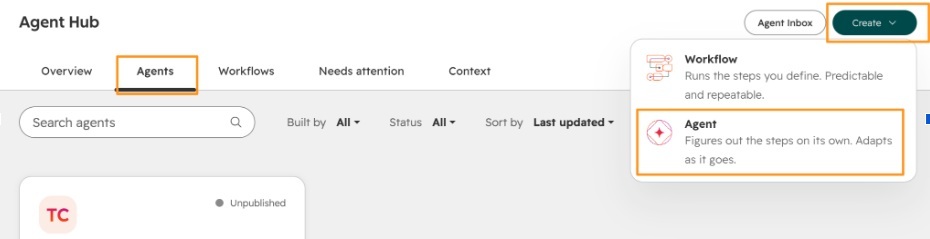
5. Click on the Agents tab, then Create button, then click Agent.
6. Give Breeze the following example prompt to generate a draft of the new agent that we will then edit manually:
Create an agent that will give me my top 3 Companies in HubSpot based on revenue and add those to a new route in Badger and optimize the route. The agent should create a new route in Badger with each run. Use the “Company annual revenue” field for the revenue values.
7. Breeze will create the new agent. It might say that it has trouble connecting to Badger Maps Connector - that is expected until we manually add the connector to the new agent by doing the following:
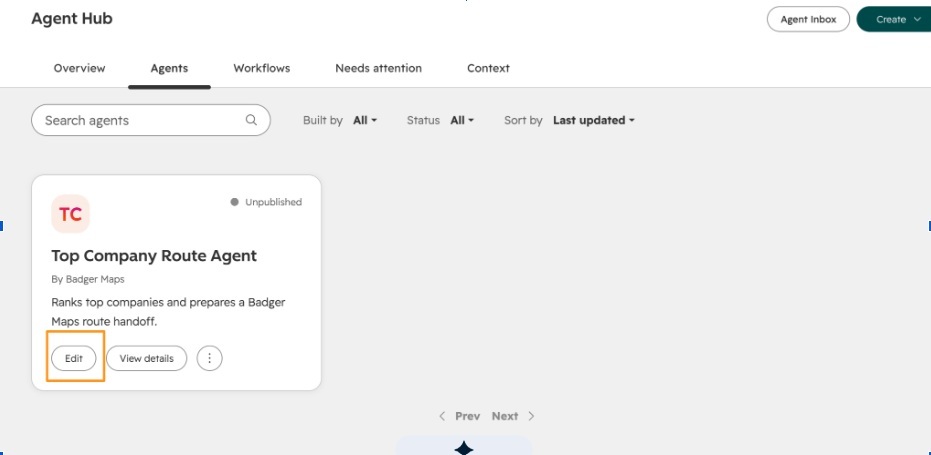
Go back to the Agent Hub main page and click the Edit button for the new agent.
8. Under Actions, click Add Action, then the Connectors tab, then select Badger Maps Connector.
9. The agent is now ready to test. Click Test - the agent will run and a new route will be created in your Badger Maps account. Once testing is complete, Publish the agent.
10. You can also now use the Badger Maps Connector in Breeze chats.


