Does Badger Work Offline?
Badger is a web-based app so it requires internet connection to use its features. When you’re offline, you won’t be able to save new notes, edit records, etc.
However, you can still continue navigating your current route even if you suddenly lose connection. Just make sure you’ve downloaded the area in Google Maps for offline use before heading out, and you’ll be all set. Read on to learn how. It’s also a good idea to print a PDF copy of your route from the web app as a backup in case technology fails.
iOS
Download Offline Map
1. Open up Google Maps, and search for the area where your route is located.
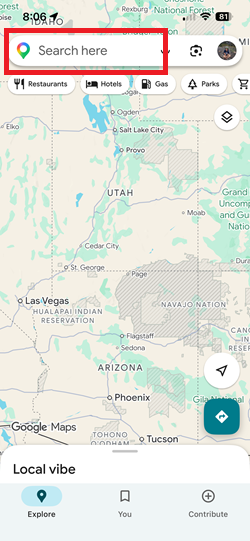
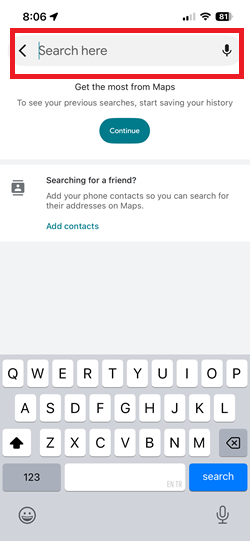
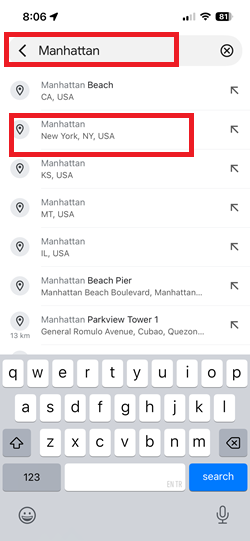
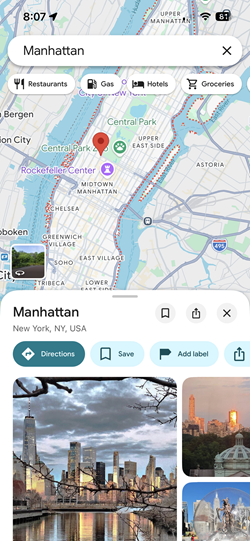
2. Then tap More, and choose Download offline map.
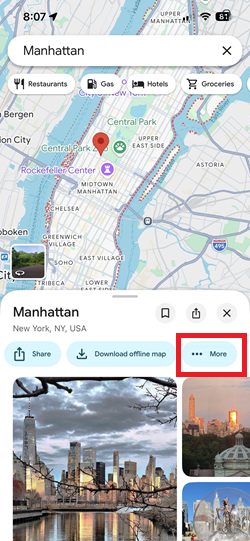
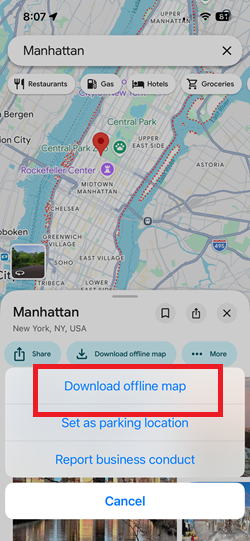
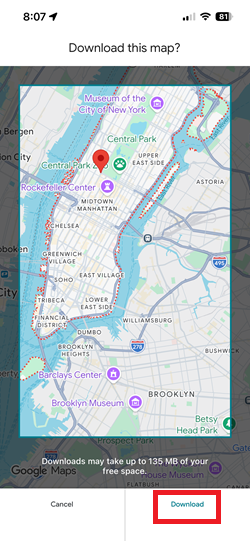
You can check this link for the full steps on Google’s Support page.
Offline Navigation
Now let’s say you’re on the road, your Badger route is open, and you suddenly lose your connection.
1. Access your saved route while you’re still online.
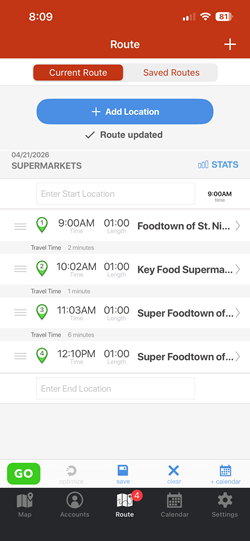
2. Once you’re offline, open Google Maps, tap your profile’s icon, then Offline maps, and tap the offline map where your route is located.
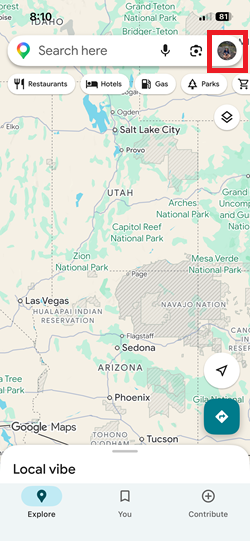
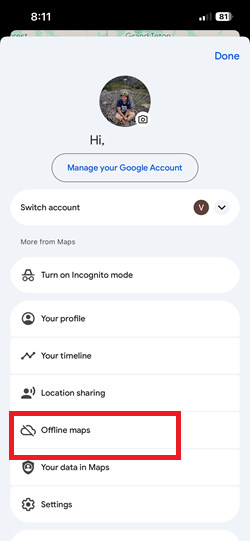
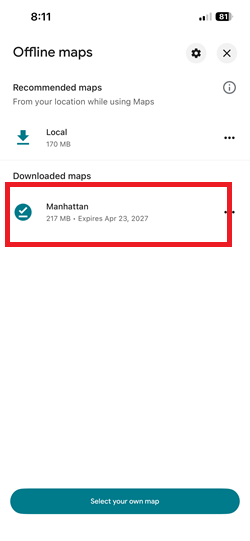

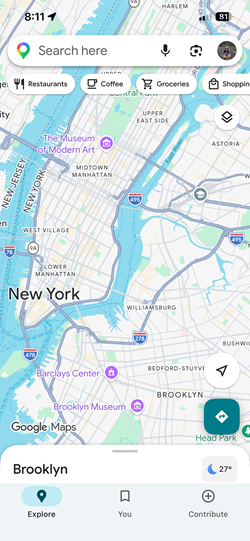
3. Go back to the Badger Maps app, and navigate your route. You will see a prompt that says “Currently Offline”. Just click OK to continue navigating.
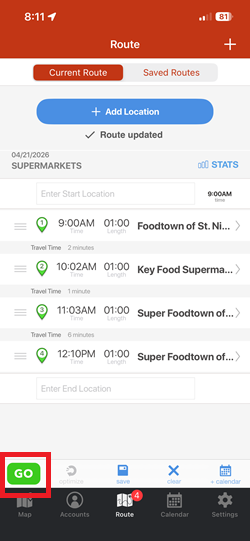
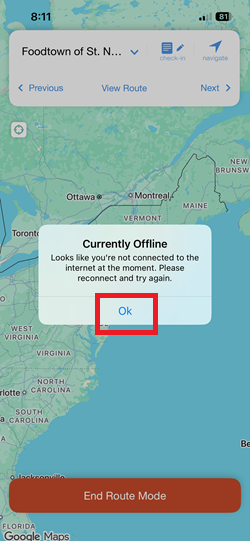
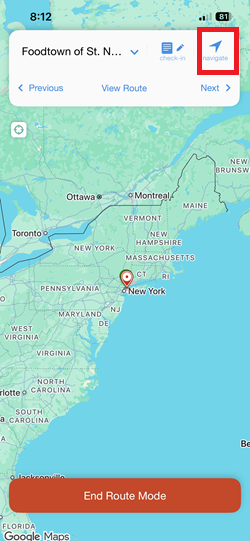
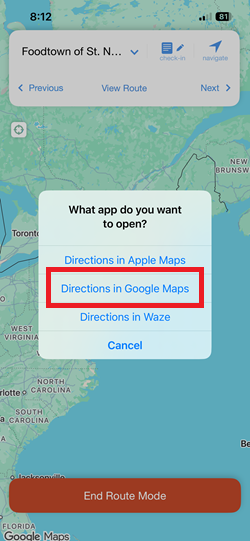
4. Choose Directions in Google Maps. Note that this step can be skipped if you’ve set Google Maps as your Default Turn-by-Turn.
5. Google Maps automatically opens up after this. Tap the Your Location box, enter your starting location, and tap the scroll bar to get driving directions.
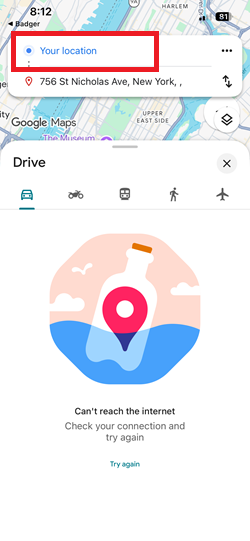
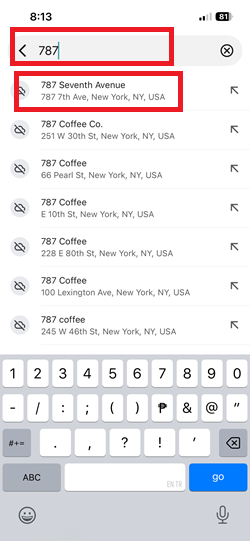
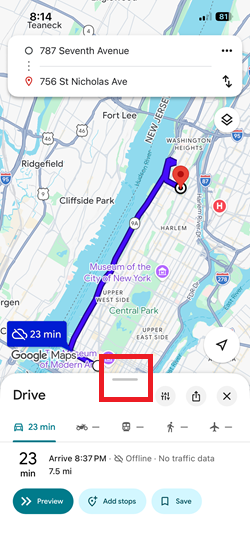
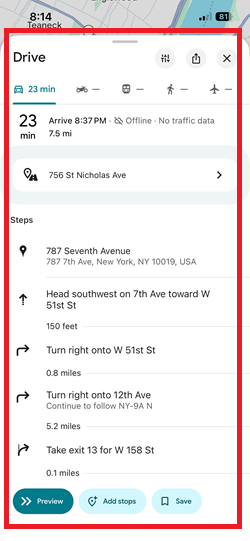
Repeat Steps 3 - 5 if you’re still offline and need to go to your next location.
Android
Download Offline Map
1. Search for your route’s area in Google Maps.
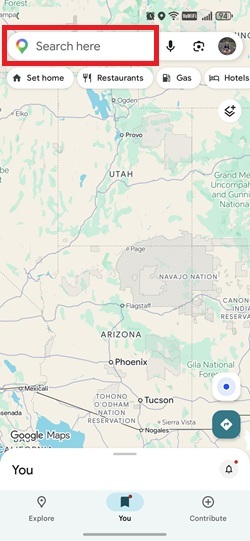
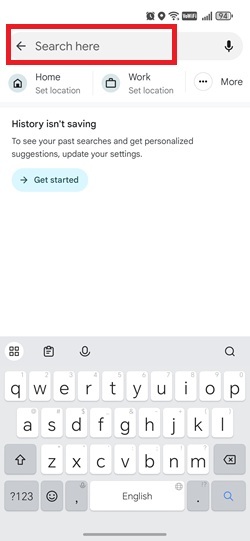
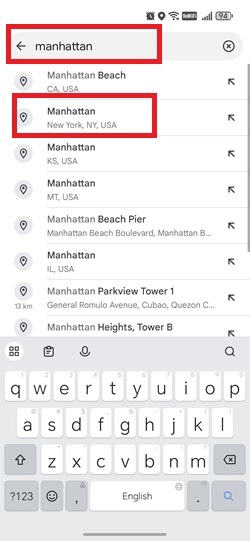
2. Tap More, and select Download offline map.
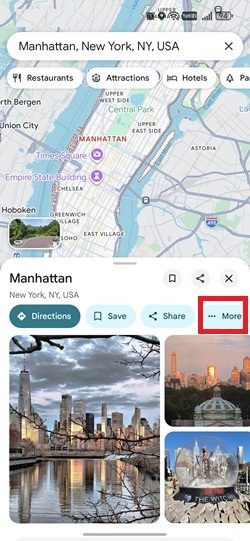
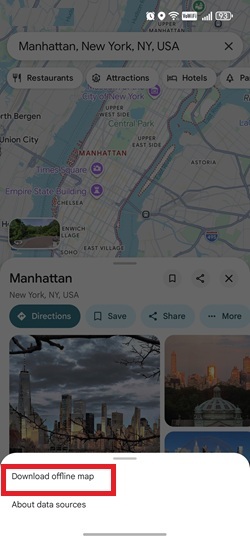
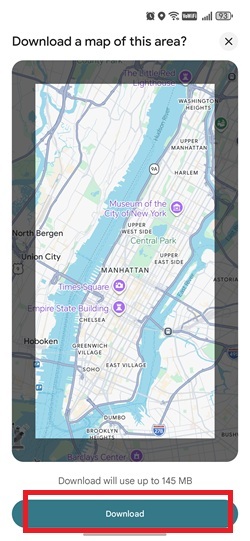
You can check this link for the full steps on Google’s Support page.
Offline Navigation
Now let’s say you’re on the road with your Badger route open, and you suddenly lose connection.
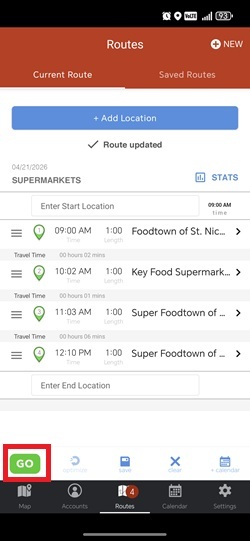
1. Open your saved route while you’re still online.
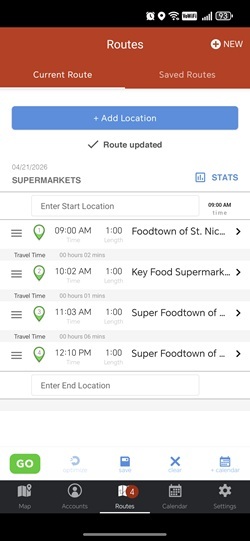
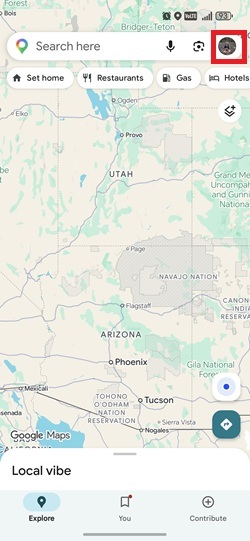
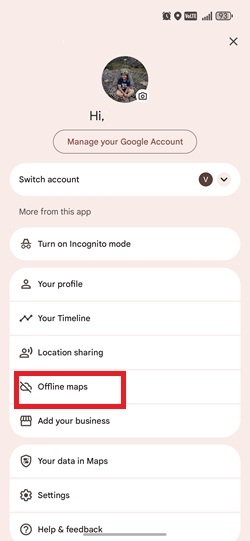
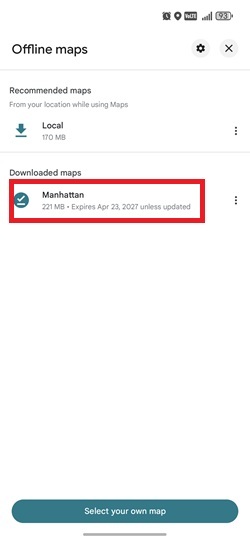
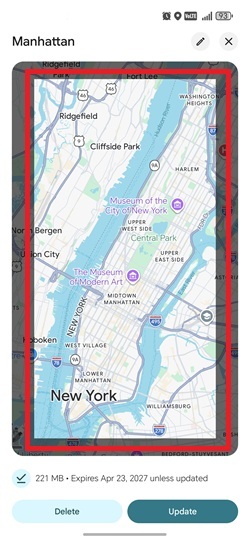
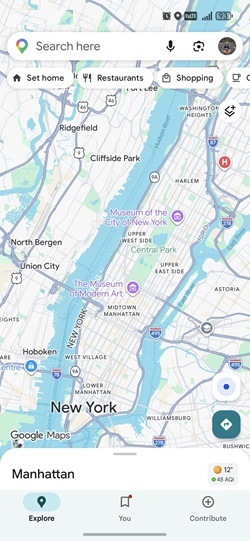
2. Once you’re offline, open Google Maps, tap your profile icon, go to Offline Maps, then select the offline map covering your route area.
3. Return to the Badger Maps app and continue your navigating route. You’ll see a “Currently Offline” prompt—tap OK to proceed with navigation.
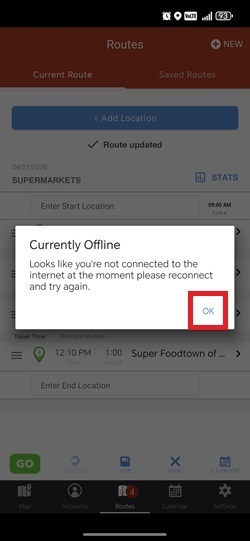
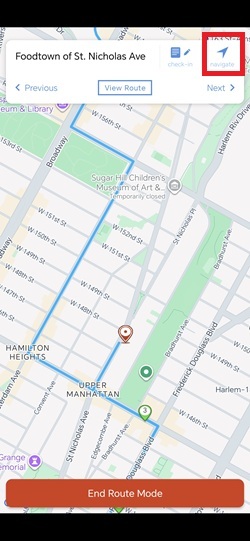
4. Google Maps will automatically open after this. Tap the Your Location field, enter your starting point, then tap the scroll bar for driving instructions.
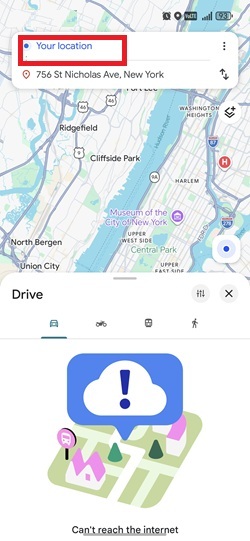
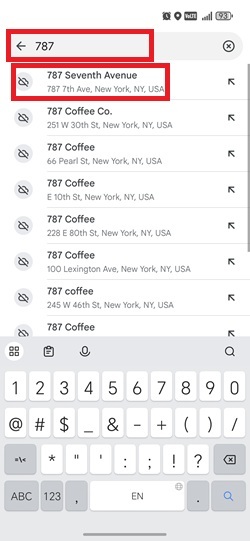
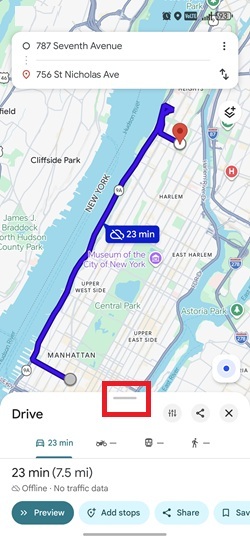
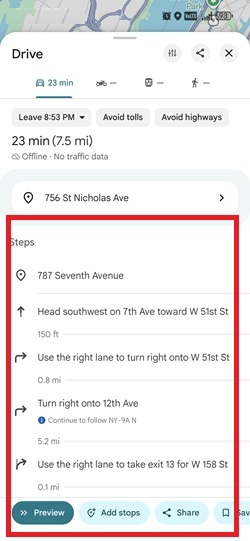
Repeat Steps 3 and 4 if you need to head to your next stop if you’re still offline.


