News: Now offering SSO.
Learn more
News: Now offering SSO.
Learn moreWhen driving, switching back and forth between Badger Maps and your CarPlay can be tedious and potentially unsafe. Good thing, your saved routes in Badger can now be connected to CarPlay. This allows you to see your route stops on your car’s display screen and get turn-by-turn directions without switching between two devices. Here’s how it works.
1. Choose Badger Maps from your CarPlay screen.
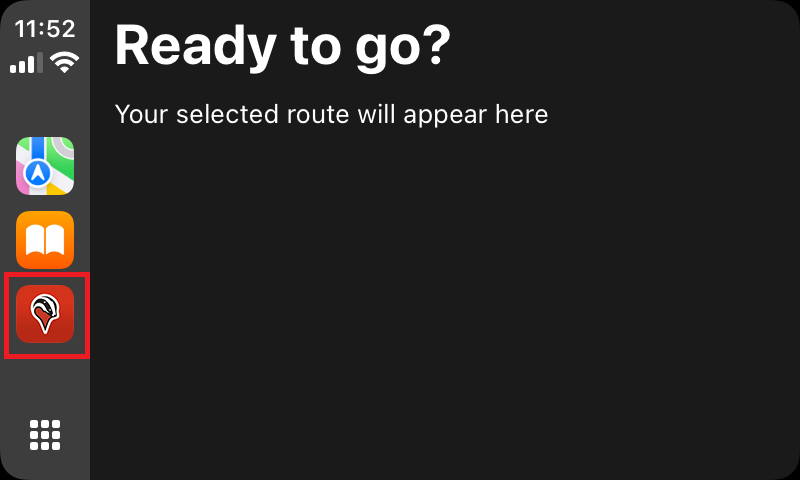
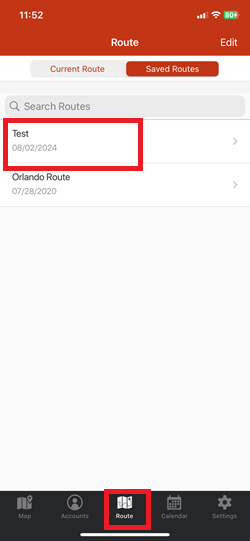
2. Open up your saved route from your iPhone.
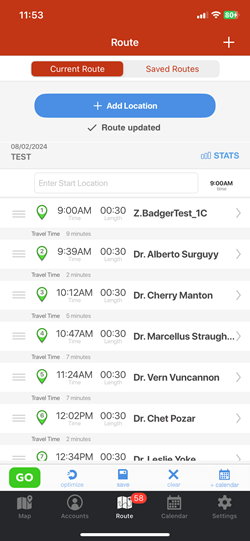

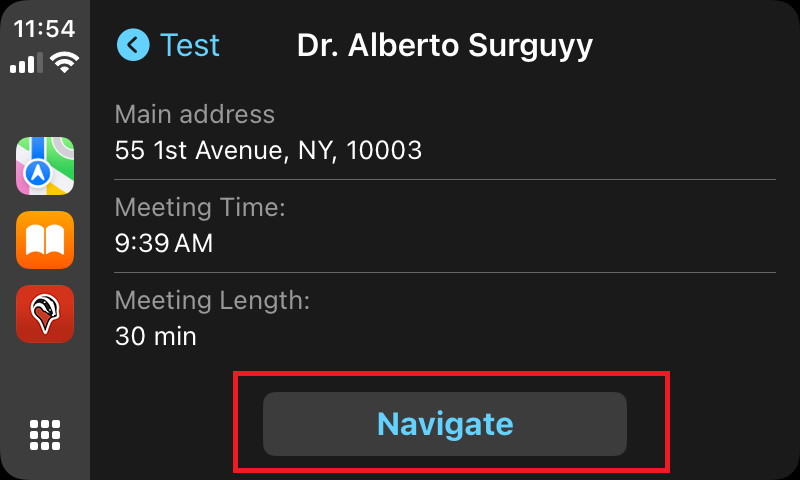
3. Once opened, go back to CarPlay and you’ll see that your route has appeared on your car’s display screen. Choose the route stop that you’d like to go to.
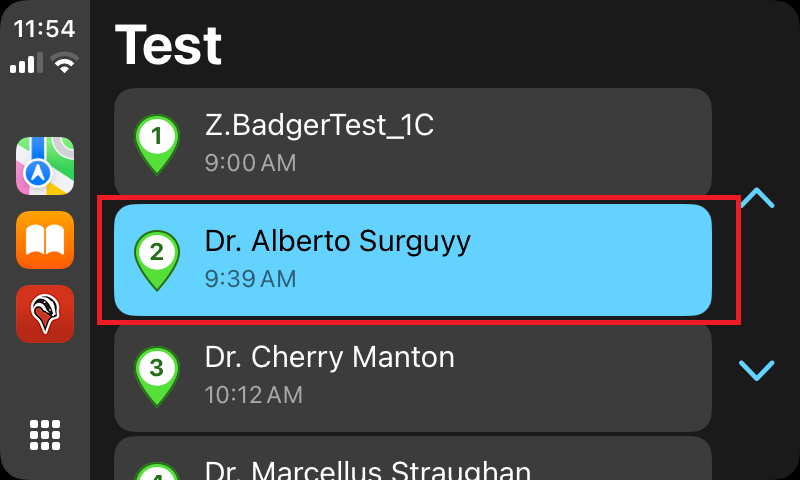
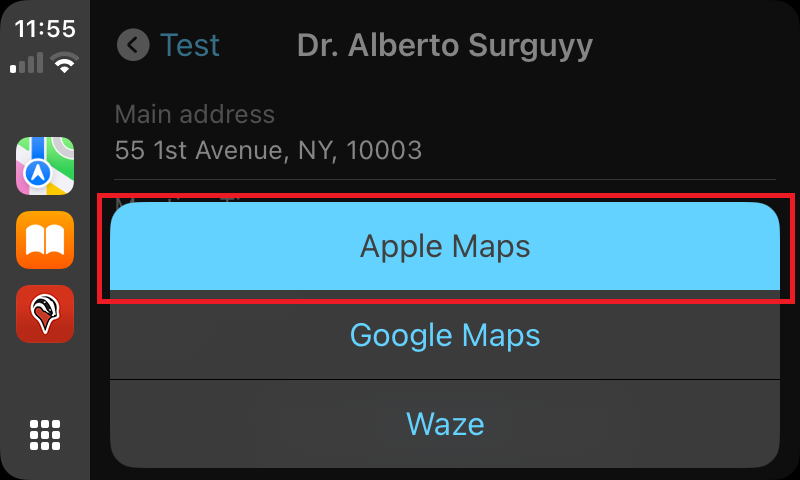
4. Then tap Navigate and choose the navigation app that you want to use (ex. Apple Maps, Google Maps, or Waze).
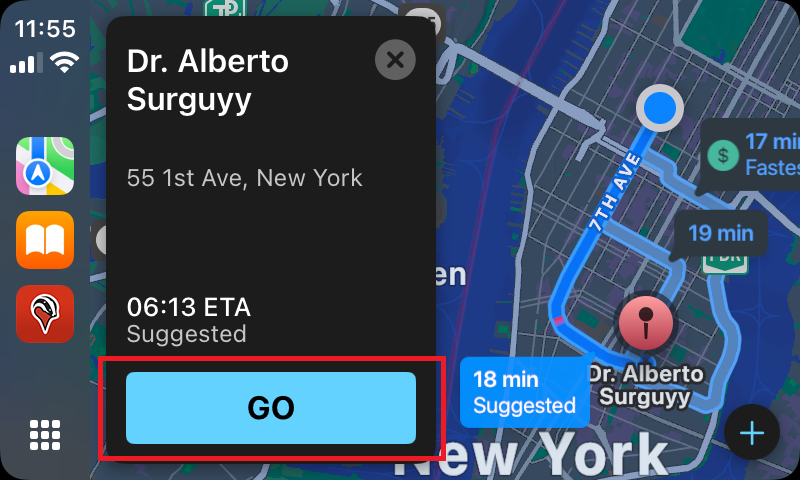
5. Tap Go to begin the navigation to your stop.
Looking for our logo?
Grab a Zip packed with our logo in PNG and EPS formats.


