How to Edit an Account (iPhone)
Badger Maps makes it easy to edit customer accounts conveniently from your iPhone, you can add contact information or edit relevant information to any account quickly and efficiently.
1. First, you need to get to the Account Details screen to edit an account, and there are two ways to do this.
A. Tap Accounts, then tap the account you want to edit. Scroll through the list or use the Search Accounts function to locate it.
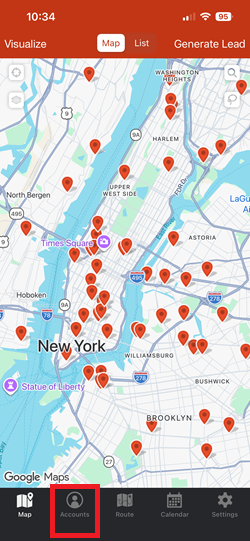
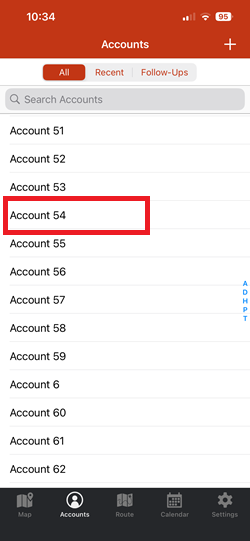
B. On the Map screen, tap the pin for the account you want to edit, then tap the account name at the bottom of the screen.
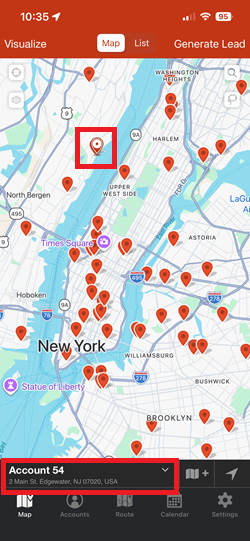
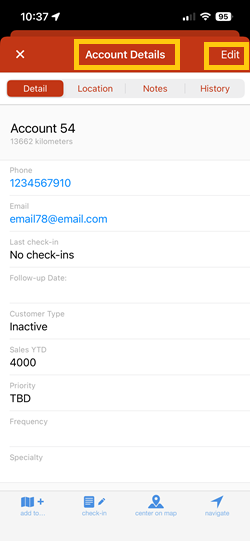
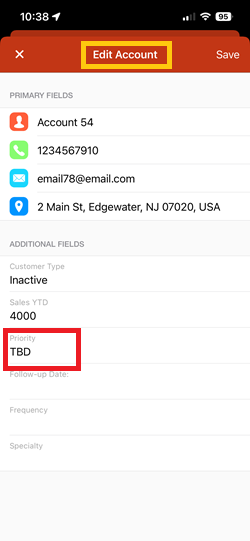
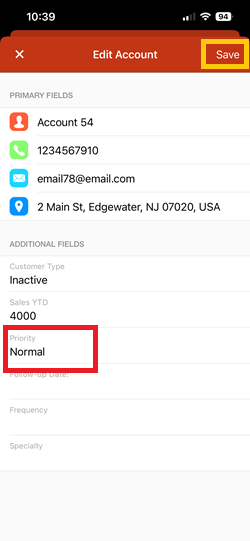
2. Click Edit to go to the Edit Account page. You can update the Primary fields here like the Name, Phone, Email and Address, but in this example, let’s change the value on the Priority field. Click on it to start editing.
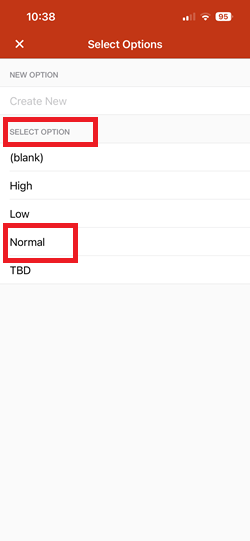
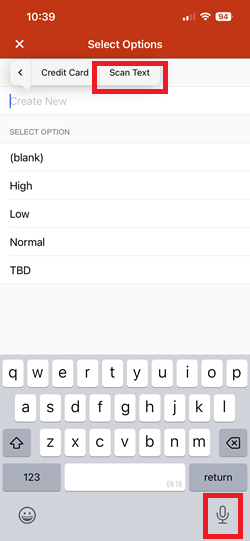
3. After that, you'll be taken to the Select Options page. You can select from the existing options by tapping on one of them under the Select Option field.
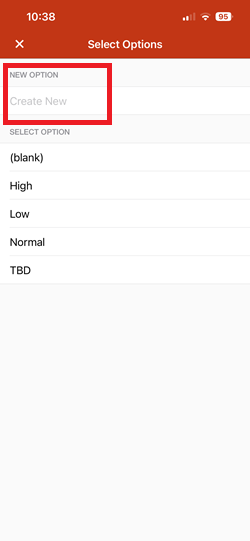
Or, create a new option by following any of these:
A. Tap Create New on the New Option field, and typing the option you'd like to add.
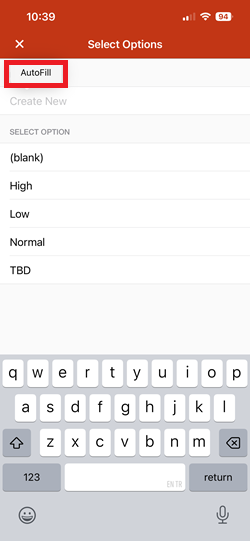
B. Use the Dictate Text or Scan Text functions to create the new option.
4. Click Save when you're done, and you should see that the Priority value has changed.
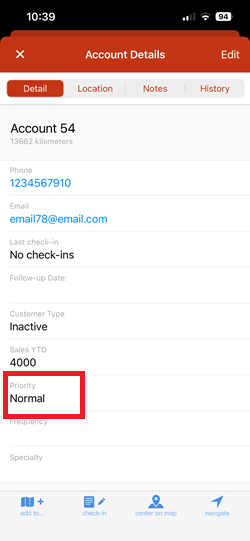
That’s all! The account information is now updated.
Here’s a quick video of how you can edit an account using the Badger Maps iPhone app.


